How to Add Online Ordering to Your Restaurant Website
Updated:
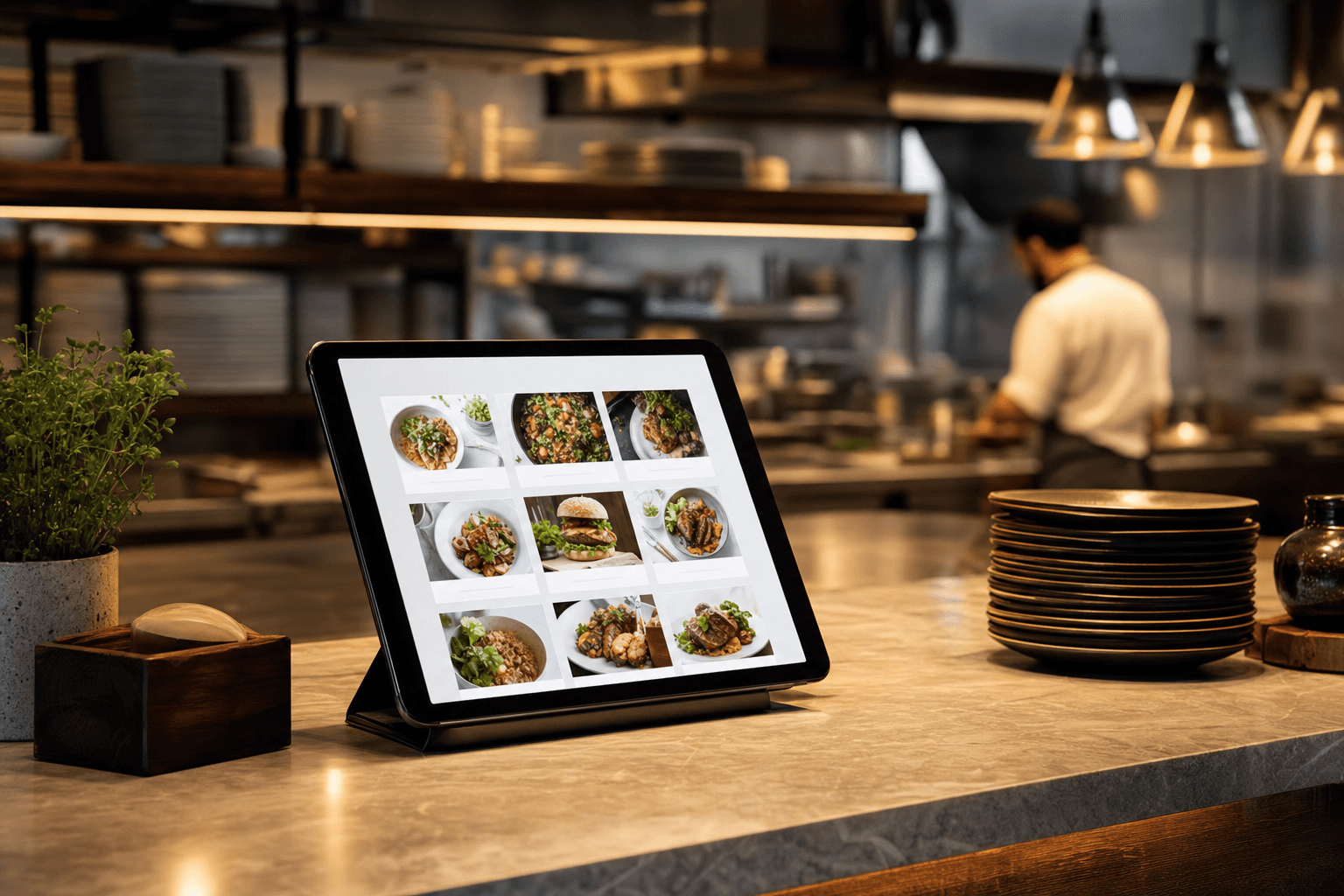
Online ordering isn't a nice-to-have anymore — it's table stakes. Customers expect to pull up your website, browse your menu, and place an order without picking up the phone. If your site doesn't offer that, they'll close the tab and order from whoever does.
The good news: you don't need a developer, a $500/month software subscription, or a deal with a delivery app to make it happen. This guide walks you through every step — from choosing the right setup to getting your first direct order — in plain language.
Why Direct Ordering Beats Third-Party Apps
Before diving into the how, it's worth being clear on the why. Third-party delivery platforms like DoorDash, Uber Eats, and Grubhub charge restaurants between 15% and 30% commission on every order. On a $40 order, that's up to $12 gone before you've paid for ingredients, labor, or packaging.
Direct ordering — where a customer orders through your own website or menu page — eliminates that commission entirely. You keep the full sale price, you own the customer relationship, and you collect the data (email, order history, preferences) that lets you market to them later.
There's also a trust factor. When customers order directly from you, they know their money is going to your restaurant. That matters to a growing segment of diners who want to support local businesses rather than feed platform profits.
For a deeper look at how to compete without surrendering margin, see our guide on how to compete with delivery apps without paying 30% commissions.
Understand Your Options Before You Build
There's no single right way to add online ordering. The best approach depends on your volume, your tech comfort level, and whether you already have a website. Here are the main paths:
Option 1: A Hosted Menu Page with Ordering Built In
If you don't have a full website — or your current site is just a placeholder — the fastest path is a hosted digital menu that includes an ordering flow. You build your menu once, set up categories and items, enable ordering, and share the link. Customers land on a clean, mobile-friendly page and order directly.
This is ideal for: independent restaurants, food trucks, ghost kitchens, and anyone who wants to move fast without a web developer.
Option 2: Embed an Ordering Widget Into an Existing Website
If you already have a website on WordPress, Squarespace, Wix, or a similar platform, you can embed an ordering widget or link to a dedicated ordering page. Most modern ordering tools generate an embed code or a shareable URL you can drop into your existing site.
This is ideal for: restaurants that have an established website and want to add ordering without rebuilding from scratch.
Option 3: A Full Restaurant Ordering Platform
Tools like Square Online, Toast TakeOut, or Olo are purpose-built for high-volume restaurant ordering. They handle complex menus, modifiers, POS integration, and sometimes delivery logistics. They come with more setup time and often a monthly fee, but they scale well.
This is ideal for: multi-location restaurants, high-volume operations, or anyone who needs deep POS integration.
For most independent restaurants and cafes, Option 1 or Option 2 will get you 90% of the way there at a fraction of the cost and complexity.
Step-by-Step: Setting Up Online Ordering
Step 1: Nail Your Menu First
Your online menu is the foundation of your ordering system. Before you configure a single payment setting, get your menu right. That means:
- Clear categories — Starters, Mains, Sides, Drinks, Desserts. Don't make customers hunt.
- Accurate descriptions — Include key ingredients, portion size, and any allergen info. Customers ordering online can't ask your server a question.
- Good photos — Items with photos consistently outsell items without them. Even a clean, well-lit phone photo beats nothing.
- Up-to-date prices — Nothing erodes trust faster than a price mismatch between your online menu and what you charge at the door.
If you're starting from a printed menu, our online menu maker makes it straightforward to build a digital version quickly.
Step 2: Set Up Modifiers and Options
This is where a lot of restaurant owners cut corners — and regret it. Modifiers are the choices customers make when ordering: size, protein, toppings, cooking preference, add-ons. If your online menu doesn't capture these, you'll get orders that require a follow-up call to clarify, which defeats the purpose.
Go through every item and ask: what choices does a customer normally make when ordering this in person? Build those into your modifier groups. Mark required choices (like protein selection on a burrito bowl) as required, and optional ones (like extra sauce) as optional.
Step 3: Configure Ordering Settings
Once your menu is solid, set up the logistics of how orders will work:
- Order types — Are you offering pickup only, delivery, or both? Be explicit. If delivery, define your radius and minimum order amount.
- Lead time — How long does it take to prepare an order? Set a realistic prep time so customers know when to show up or expect delivery.
- Hours — Restrict ordering to your actual operating hours. Accepting orders at 2 AM for an 11 AM opening creates confusion and complaints.
- Order throttling — Some platforms let you cap how many orders come in per time slot. Use this if your kitchen can't handle a sudden spike during peak hours.
Step 4: Set Up Payments
Online ordering requires online payment. The standard approach is to integrate a payment processor — Stripe and Square are the most common — directly into your ordering flow. Customers pay at checkout; funds land in your bank account (usually within 1–2 business days).
A few things to confirm before going live:
- Is there a per-transaction fee? (Typically 2.6%–2.9% + $0.10–$0.30 per transaction. This is normal and far less than a delivery app commission.)
- Do you want to allow tipping at checkout? Most customers expect the option.
- Will you accept cash on pickup as well? If so, make sure your system has a "pay at pickup" option clearly labeled.
Step 5: Test Everything Before You Publish
Place a real test order yourself — ideally from your phone, on a cellular connection (not your restaurant's WiFi). Go through the full flow: browse the menu, add items with modifiers, proceed to checkout, enter payment, and confirm. Check that:
- The order confirmation email arrives promptly
- The order appears correctly in your dashboard or POS
- Modifier choices are captured accurately
- The total (including any fees or taxes) is correct
Then have one or two people who don't know your menu do the same. They'll catch confusing labels or missing options that you've become blind to.
Connect Ordering to Your Existing Website
If you already have a restaurant website, you want ordering to feel like a natural part of it — not a jarring redirect to a third-party page. Here's how to integrate cleanly:
Add a Prominent "Order Now" Button
Put it in your navigation bar and above the fold on your homepage. Don't bury it. The button should be visually distinct — a contrasting color, not just a text link. Label it "Order Online" or "Order Now." Avoid clever labels like "Get Food" that make people think for even a second.
Link From Your Menu Page
Your menu page is often the highest-traffic page on your restaurant website. Every item or section should have a clear path to ordering. A persistent "Start Your Order" button that follows the user as they scroll is effective.
Use a Subdomain or Embedded Frame
If your ordering system lives on a separate URL (e.g., order.yourrestaurant.com), set it up as a subdomain rather than a completely different domain. It keeps the experience feeling like your brand. Alternatively, embed the ordering interface directly in a page on your site using an iframe or widget, so customers never visibly leave your site.
For a detailed walkthrough of connecting a hosted menu to an existing site, see our guide on how to connect your hosted menu to your existing website.
Promote Your Online Ordering
Building an ordering system and telling no one is a wasted investment. Here's how to drive traffic to it:
QR Codes on Tables and Packaging
Print a QR code that links directly to your ordering page and put it on table tents, takeout bags, receipts, and your front door. Customers who've already eaten with you and want to reorder are your warmest audience. Make it trivially easy for them.
Google Business Profile
Add your ordering link to your Google Business Profile under the "Order Online" button. When someone searches your restaurant name on Google, they'll see the ordering option right in the search results — no extra clicks required.
Social Media Bio Links
Your Instagram and Facebook bio links should go to your ordering page (or a link-in-bio page that includes it prominently). Every post about your food is an implicit invitation to order — make the path frictionless.
Email and SMS
If you have a customer list, send a dedicated announcement when you launch online ordering. Keep it short: "You can now order directly from us online — no apps, no fees. Here's the link." Then include your ordering link in every future email newsletter.
In-Store Signage
A small sign at the register or on menus — "Order online for pickup: [URL]" — catches regulars who might not otherwise know the option exists. Some customers strongly prefer ordering ahead and will switch their entire routine once they know it's available.
Keep Your Ordering System Working Smoothly
Launching is the beginning, not the end. A few operational habits will keep things running well:
- Update your menu in real time. If you 86 an item mid-service, mark it unavailable in your ordering system immediately. An order for something you can't make creates a bad experience and a refund headache.
- Check your notification settings. Make sure your kitchen or front-of-house staff receives order alerts reliably — whether that's a tablet notification, a printer ticket, or a sound alert. Missed orders are worse than no ordering system at all.
- Review order data weekly. Which items are most ordered online? Which have the highest abandonment (added to cart but not purchased)? This data tells you what's working and what to adjust — in your menu, your pricing, or your descriptions.
- Respond to issues fast. If a customer has a problem with an online order, resolve it quickly and directly. A fast, fair resolution often turns a frustrated customer into a loyal one.
What About Delivery?
Offering pickup through your own ordering system is straightforward. Delivery adds complexity: you need drivers, insurance considerations, and a dispatch process. You have a few options:
- Self-managed delivery — You hire your own drivers. Full control, but adds HR and logistics overhead. Works well for high-volume operations in a tight delivery radius.
- White-label delivery services — Some platforms (like DoorDash Drive or Relay) provide drivers for a flat per-delivery fee without taking a commission on the order itself. You keep the customer relationship; they handle the last mile.
- Hybrid approach — Handle pickup in-house; use a flat-fee delivery service for delivery orders. This is the most common setup for independent restaurants adding delivery without the full overhead.
Whatever you choose, be clear with customers about delivery fees, estimated times, and your delivery radius. Vague expectations lead to complaints.
Frequently Asked Questions
Do I need a full website to offer online ordering?
No. A hosted menu page with ordering enabled is enough to start taking direct orders. You can always connect it to a full website later, but many restaurants run entirely on a well-built menu page without a traditional multi-page website.
How much does it cost to set up online ordering?
Costs vary widely. A hosted menu with ordering can cost as little as a few dollars per month. Full-featured restaurant ordering platforms typically run $50–$200/month plus payment processing fees. The key comparison isn't the monthly fee — it's the monthly fee versus what you'd pay in delivery app commissions on the same order volume.
Can I use online ordering just for pickup, not delivery?
Absolutely. Pickup-only ordering is the simplest setup and is extremely popular with customers who want to skip the wait. Many restaurants start with pickup and add delivery later once the system is running smoothly.
What if my menu changes frequently?
This is one of the strongest arguments for a digital ordering system over a printed menu. You can update prices, add seasonal items, or mark things unavailable in real time — no reprinting, no stickers over old prices. See our guide on how often you should update your restaurant menu for more on keeping things current.
Will customers actually use direct ordering instead of apps?
Yes — if you make it easy and give them a reason to. Customers who already know and like your restaurant are often happy to order directly when they know the option exists. The main barrier is awareness. Promote your direct ordering link consistently, and offer a small incentive (a free drink, a discount on first order) to encourage the first direct order. Once someone orders directly once, they tend to repeat.
Ready to set up online ordering without the complexity or commission fees? MenuHoster gives you a professional digital menu with built-in ordering — no developer required, no third-party commissions. See our pricing and get your ordering page live today.
MenuHoster Team
Helping restaurants go digital