How to Display Your Salon Menu on an iPad or Screen for a Modern Client Experience
Updated:
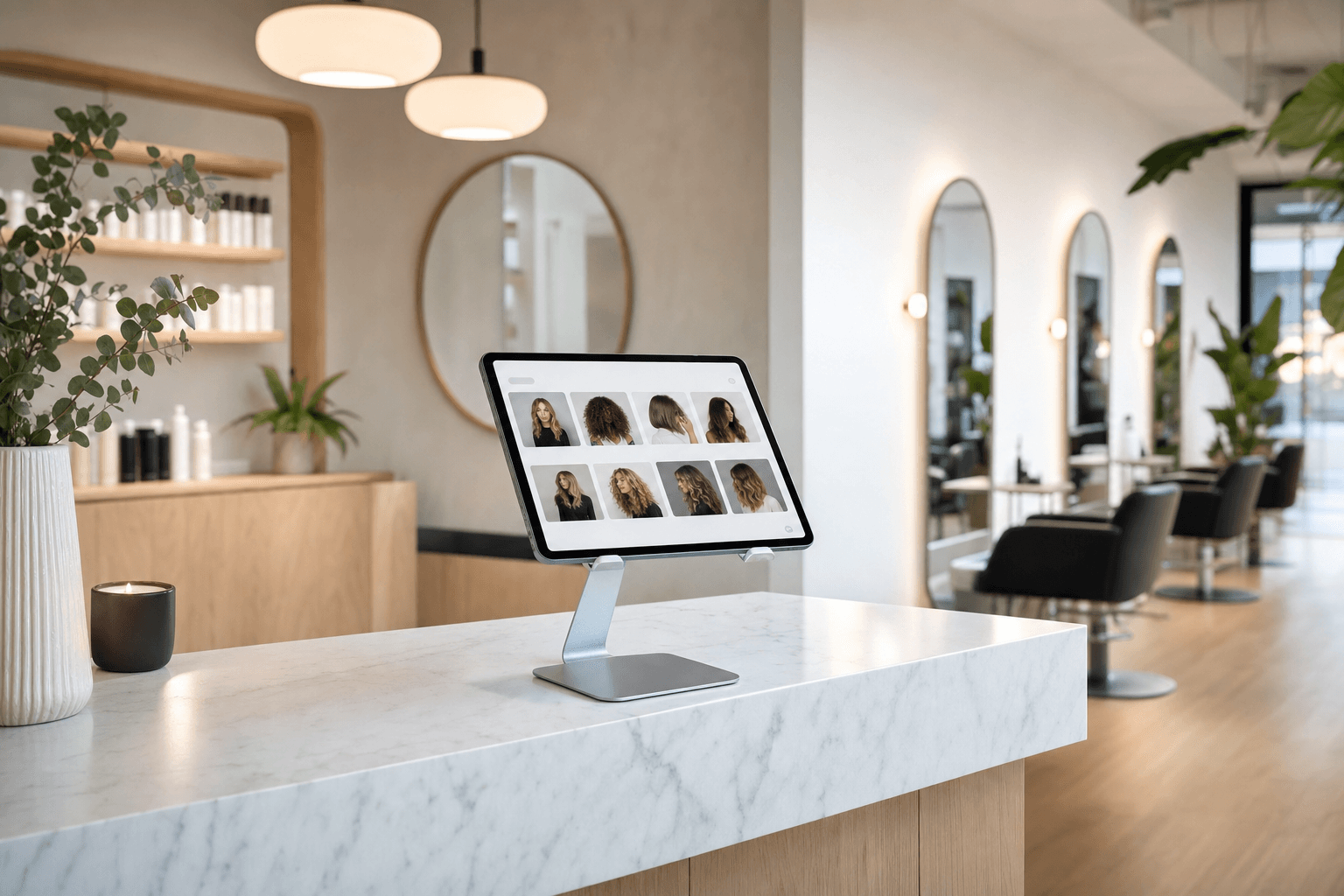
Walk into almost any modern hotel lobby, coffee shop, or upscale restaurant and you'll see a digital menu on a screen. It looks polished, it communicates value instantly, and it quietly does the selling before a single staff member opens their mouth. Yet most salons, barbershops, nail studios, and spas are still handing clients a laminated sheet or pointing them to a printed price list taped to the wall.
That gap is an opportunity. Displaying your salon menu on an iPad, tablet, or wall-mounted screen is one of the highest-impact, lowest-cost upgrades you can make to your front-of-house experience. This guide walks you through exactly how to do it — hardware choices, software setup, placement strategy, and the small details that make clients spend more and feel better about spending it.
Why a Screen Beats a Printed Menu
Before getting into the how, it's worth being clear on the why — because "it looks nicer" isn't enough of a reason to change your workflow.
- It removes friction at the front desk. When clients can see all your services and prices clearly, they arrive at the chair with questions already answered. Your stylists spend less time reciting prices and more time doing the work.
- It reduces perceived wait time. A client browsing a well-designed menu in your waiting area is engaged, not bored. That changes how they feel about the overall visit.
- It sells add-ons passively. A printed menu rarely changes. A digital menu can highlight seasonal treatments, limited-time packages, or slow-day promotions without you printing anything new.
- It signals professionalism. Pricing transparency on a clean display communicates that your business is established and confident — which makes premium pricing feel more justified.
- Updates take minutes, not days. Raised your prices? Added a new treatment? Changed your hours? Fix it in your dashboard and every screen in the building updates instantly.
Choosing Your Hardware
You have three main options, each with different costs and use cases.
Option 1: iPad or Tablet on a Stand
This is the most flexible and affordable starting point. A 10-inch or 12-inch iPad mounted on a countertop stand works perfectly at a reception desk or waiting area side table. Clients can tap through service categories, zoom into descriptions, and even scan a QR code to pull the menu up on their own phone.
What to buy: Any current iPad (or Android tablet) will work. A locking enclosure stand — sometimes called a kiosk stand — costs $30–$80 on Amazon and prevents the tablet from being walked off. Set the tablet to Guided Access mode (on iOS) so clients can only interact with the menu app and can't accidentally navigate away.
Best placement: Reception desk facing the client, waiting area coffee table, or mounted at eye level on a side wall near the entrance.
Option 2: Wall-Mounted TV or Monitor
A 32–55 inch TV mounted on the wall behind your reception desk or in the waiting area creates a strong visual anchor. It's visible from across the room, which means clients start reading before they even reach the desk. This format works especially well for salons with a busier front-of-house or multiple stylists working simultaneously.
What to buy: Any smart TV or monitor will work. Plug in a $35 Amazon Fire Stick, Google Chromecast, or Apple TV to run a browser-based menu. Alternatively, connect a small mini-PC or Raspberry Pi for a fully locked-down display.
Best placement: Behind the reception desk at eye level, or on a wall in the waiting area where seated clients have a direct sightline.
Option 3: QR Code + Client's Own Phone
This isn't a screen display in the traditional sense, but it's worth including because it pairs perfectly with either of the above. A printed QR code on your desk, in your mirror station, or on a small tent card lets clients pull up your menu on their own device. No hardware to manage, no screen to clean, and clients can browse at their own pace — including while they're in the chair.
You can use MenuHoster's QR code menu generator to create a scannable code linked directly to your live digital menu. Print it once, update the menu as often as you like, and the QR code never changes.
Setting Up Your Digital Menu
The hardware is the easy part. The menu itself needs to be structured thoughtfully to do its job well.
Organize by Category, Not by Price
Resist the temptation to list services cheapest-to-most-expensive. Instead, group by service type: Cuts, Color, Treatments, Extensions, Add-Ons, Retail. This mimics how clients think ("I need a color treatment") rather than how owners think ("I need to fill the $45 slot"). It also prevents clients from anchoring on the lowest price and defaulting to it.
Write Descriptions That Sell
A service name alone — "Balayage" or "Deep Conditioning Treatment" — doesn't communicate value. Add one sentence that tells the client what the result feels or looks like. "Hand-painted highlights blended for a natural, sun-kissed finish" does more work than "Balayage" ever will. If you need help writing these, see our guide on building a salon menu that converts browsers into bookings.
Include Duration and Starting Prices
Two of the most common questions at a salon front desk are "How long will it take?" and "How much does it cost?" Answer both on the menu. Use "from $X" for services with variable pricing — it sets an expectation without locking you in. Include duration so clients can plan their day, which reduces last-minute cancellations.
Use High-Quality Photos Selectively
One or two strong before/after images per category add credibility and aspiration. Don't overload the menu with photos — it slows load time and clutters the layout. Pick your best work for each category and let the descriptions carry the rest.
Highlight Add-Ons and Packages
Your screen is prime real estate for upselling. Create a dedicated section for add-on services (scalp massage, glossing treatment, eyebrow tint) and make sure it's visible. Even better, build bundled packages and display them prominently. A "Color + Cut + Blowout" package at a slight discount almost always outperforms the same services listed individually.
Placement Strategy That Drives Results
Where you put your screen matters as much as what's on it.
The Reception Desk
A tablet or small monitor facing the client at check-in is the highest-converting placement. The client is standing still, waiting for you to pull up their appointment. That 60–90 seconds is a perfect window for them to notice an add-on they hadn't considered. Position the screen so it's easy to read without the client having to lean in.
The Waiting Area
A wall-mounted TV or a tablet on a side table in the waiting area gives clients something useful to do while they wait. Make sure the font is large enough to read comfortably from a seated position — at least 18–24pt for body text on a TV display. Rotate between your service menu and a simple branded slide (your Instagram handle, a current promotion, a five-star review) to keep the display dynamic without being distracting.
The Mirror Station
Some salons place small tablets at individual styling stations so clients can browse the full menu while in the chair. This is particularly effective for upselling treatments — a client who just got a color service is a warm audience for a "protect your color" conditioning treatment displayed right in front of them. Keep the tablet angled so it doesn't interfere with the mirror sightline.
Near the Retail Shelf
If you sell retail products, a small screen near the product display can show short descriptions, key ingredients, or "best for" callouts. This reduces the need for staff to explain every product and helps clients make confident purchase decisions on their own.
Keeping Your Menu Current
A digital menu only stays an asset if it stays accurate. An outdated price or a discontinued service listed on your screen creates friction and erodes trust. Build a habit around menu maintenance.
- Set a quarterly review reminder. Block 30 minutes every three months to review your service list, prices, and descriptions. Most salons find at least one thing that needs updating.
- Update prices before they go live, not after. If you're raising prices in January, update the digital menu in late December. Clients who see the new price on the screen before you announce it verbally are less likely to be caught off guard.
- Use seasonal sections strategically. Add a "Summer Specials" or "Holiday Packages" section when it's relevant, then remove it when the season ends. This keeps the menu feeling fresh and gives you a reason to promote it on social media.
- Test your QR code monthly. If you're using a QR code alongside your screen display, scan it yourself once a month to confirm it loads correctly and quickly. A broken or slow-loading menu is worse than no menu at all.
The Spa and Nail Salon Angle
Everything above applies to hair salons, but spas and nail studios have some specific considerations worth addressing.
For spas, your spa menu often includes more complex service tiers — 60-minute vs. 90-minute massages, add-on enhancements, membership pricing. A digital display handles this complexity far better than a printed tri-fold. You can use expandable sections or a tabbed layout so the menu doesn't feel overwhelming at first glance, but full detail is one tap away.
For nail salons, the challenge is usually the sheer number of options — gel, acrylic, dip powder, nail art tiers, pedicure levels. A well-organized digital menu with clear category tabs removes the most common source of confusion at check-in and helps clients arrive at the technician's station with a clear idea of what they want. This speeds up service and reduces the likelihood of scope creep mid-appointment.
Common Mistakes to Avoid
- Font too small. If someone has to squint or lean forward, they'll give up. Use generous font sizes, especially on TV displays viewed from more than 3 feet away.
- Too much information on one screen. A scrollable menu on a tablet is fine. A wall-mounted TV should show one category at a time, rotating automatically every 8–12 seconds, or display a simplified overview menu.
- No branding. Your menu should look like it belongs to your salon. Use your brand colors, logo, and font. A generic white-background menu with black text works, but a branded one builds recognition.
- Leaving the screen on a generic browser tab. If you're using a tablet, lock it to your menu using Guided Access or a kiosk app. A client who accidentally navigates to your email inbox is an awkward situation.
- Ignoring load speed. If your digital menu takes more than 2–3 seconds to load on a QR scan, clients will abandon it. Use a platform built for fast mobile delivery.
Getting Started with MenuHoster
You don't need a developer or a design agency to build a screen-ready salon menu. MenuHoster offers professionally designed templates built specifically for salons, spas, and barbershops. You can have a live, mobile-optimized menu ready in under an hour — complete with service categories, descriptions, pricing, photos, and a QR code.
Once your menu is live, it works on any device: an iPad at your reception desk, a TV on your wall via a browser, or a client's phone via QR scan. One menu, every surface. And when you need to update a price or add a new service, you do it once and it reflects everywhere instantly.
Check out MenuHoster's pricing — there's a free plan to get started with no credit card required.
Frequently Asked Questions
What's the cheapest way to display a digital menu in my salon?
The most affordable setup is a tablet you already own (even an older iPad works) placed in a stand at your reception desk. Pair it with a free or low-cost digital menu platform and you're up and running for under $50 in hardware. If you want a wall display, a secondhand smart TV and a $35 streaming stick is a practical option.
Do I need Wi-Fi for a screen-based salon menu?
For a browser-based menu loaded on a tablet or TV, yes — you need a reliable internet connection. Most salons already have this. If your Wi-Fi is spotty in the waiting area, consider a simple Wi-Fi extender ($25–$40) or run an ethernet cable to a wall-mounted display for a more stable connection.
How do I prevent clients from messing with the tablet?
On an iPad, use Apple's built-in Guided Access feature (Settings → Accessibility → Guided Access) to lock the device to a single app. On Android, most devices have a similar "Pin app" or "Kiosk mode" option. You can also use a physical locking enclosure stand that prevents the tablet from being removed.
Can I show promotions or seasonal specials on my salon screen?
Absolutely — and this is one of the biggest advantages of a digital menu over print. You can add a "Featured This Month" section, a limited-time package, or a slow-day promotion in minutes. Some salons rotate between their standard menu and a promotional slide using a simple slideshow app on their TV display.
Will clients actually read a digital menu, or will they just ask the front desk anyway?
Both will happen, and that's fine. The goal isn't to eliminate conversation — it's to make clients more informed before that conversation starts. Salons that have switched to digital displays consistently report fewer basic pricing questions, shorter check-in times, and higher add-on attachment rates. The menu does the groundwork; your team closes the sale.
Ready to give your salon a front-of-house upgrade that actually pays for itself? Create your digital salon menu on MenuHoster today — no design skills required, no long-term contract, and your first menu is free. Set it up once and let it work for you on every screen in your salon.
MenuHoster Team
Helping restaurants go digital