How to Pair QR Code Menus with Table Numbers to Streamline Dine-In Ordering
Updated:
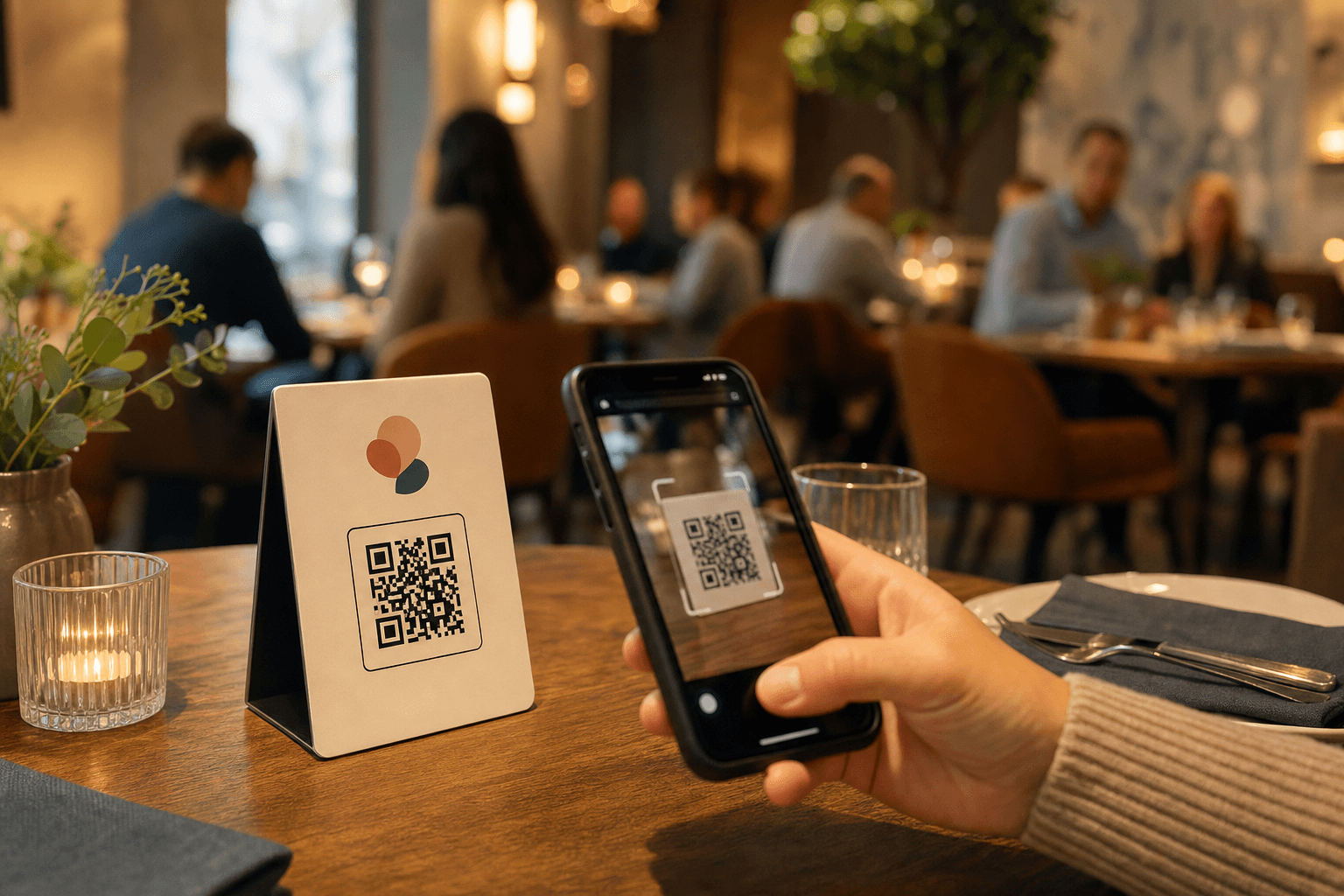
A QR code menu on its own solves one problem: it puts your menu in a guest's hands without a physical card. But when you pair that QR code with a table number, you unlock something more powerful — a direct, low-friction path from "I know what I want" to "the kitchen has my order." That's the difference between a digital menu and a streamlined dine-in ordering system.
This guide walks through exactly how to set that up — from generating unique per-table QR codes to designing the physical holder, training staff, and avoiding the common mistakes that cause the whole thing to break down during a Saturday dinner rush.
Why Table-Specific QR Codes Matter
Most restaurants that adopt QR menus use a single code that points every guest to the same menu URL. That works fine for browse-only menus. But the moment you want to capture orders digitally — or even just route a request to the right server — a single shared code creates an immediate problem: you don't know who is sitting where.
Table-specific QR codes solve this by encoding the table number directly into the URL. When a guest scans the code at Table 7, the system already knows it's Table 7. No one has to ask. No one has to type anything. The table context travels with every action the guest takes.
The practical benefits stack up quickly:
- Faster order routing: Orders arrive at the POS or kitchen printer already tagged with a table number, eliminating a step for staff.
- Fewer errors: Verbal table number communication between front-of-house and kitchen is a common source of mistakes. Removing that step removes the error.
- Better guest experience: Guests don't have to wait for a server to take their order. They scan, browse, and submit when they're ready.
- Upsell opportunities: A well-structured digital menu can surface add-ons and specials at the moment a guest is making decisions — without any staff involvement.
How Table-Specific QR Codes Work Technically
The mechanics are straightforward. Each QR code encodes a unique URL that includes a table identifier as a parameter. For example:
yourmenu.com/menu?table=7yourmenu.com/order?location=patio&table=12
When a guest scans the code, their browser opens that URL. The table number is passed to whatever system is on the other end — your online ordering page, a form, or a POS integration. From that point forward, every interaction in that session is associated with Table 7 or Table 12.
With MenuHoster's QR code menu generator, you can create individual codes for each table in minutes. You don't need to manually construct URLs or use a separate QR tool — the platform handles the unique code generation for each table identifier you specify.
Planning Your Table Numbering System Before You Generate Codes
Before you generate a single code, get your table numbering right. Retrofitting a numbering system after codes are printed and deployed is a headache you don't want.
Keep numbers simple and sequential
Tables 1 through 30 are easier for staff to reference verbally and easier to manage in a POS than a system that mixes numbers, letters, and zones (e.g., "B-Patio-12"). If you have multiple rooms or areas, consider a zone prefix that's consistent: 100s for the main dining room, 200s for the bar area, 300s for the patio.
Account for flexible seating
If you push tables together for large parties, decide in advance how you'll handle that. Options include: always using the lowest table number in the combined group, or creating a set of "large party" table numbers that only get deployed for those situations.
Don't forget the bar and high-tops
Bar seats and high-top tables are often excluded from table numbering systems, then cause confusion when a guest at the bar wants to use the QR ordering flow. Assign numbers to every seat position where you want QR ordering to work.
Document it
Create a simple floor plan document that maps table numbers to physical locations. Print a copy for the host stand, one for the kitchen, and keep a digital version accessible to managers. This becomes critical when a new hire needs to find Table 14 during a busy service.
Generating and Organizing Your Per-Table QR Codes
Once your numbering system is locked, generating the codes is the easy part. Here's a clean workflow:
- Log into your menu platform and navigate to the QR code generation section.
- Input your table range (e.g., 1–35) or enter individual table numbers if your numbering isn't sequential.
- Download the codes as individual files, named clearly (e.g.,
table-07.png,table-08.png). Leading zeros in filenames keep them sorted correctly. - Organize in a folder by zone if you have multiple areas. This makes it easy to reprint just the patio codes if something gets damaged.
- Test every code before printing at scale. Scan each one on both iOS and Android and confirm the correct table number appears in the URL and on the landing page. This step catches any generation errors before they become a guest-facing problem.
For a deeper look at pre-launch testing, see our guide on how to test your QR code menu on multiple devices before you go live.
Designing the Physical Table Display
The QR code needs a home on the table. The format you choose affects scan rates, durability, and how the code fits into your overall table aesthetic.
Table tents
A folded card stock tent is the most common format. It's inexpensive, easy to print in-house, and can include your logo, a brief instruction line ("Scan to order"), and the table number printed visibly for staff. The downside: they get knocked over, stained, and worn out. Plan to reprint every few months.
Acrylic or metal stands
A small acrylic or metal stand with an inserted card looks cleaner and lasts longer. The QR code card is replaceable without replacing the stand, which reduces ongoing cost. These work especially well for upscale casual and fine dining environments where a paper tent would feel out of place.
Stickers on the table surface
Some operators apply QR code stickers directly to the table surface or to a coaster. This eliminates the risk of the code being knocked off the table. The downside is that stickers are harder to update and can look worn over time. Use laminated stickers and inspect them regularly.
What to print alongside the QR code
- A one-line instruction: "Scan to view the menu" or "Scan to order"
- Your restaurant name or logo
- The table number, printed clearly in a large font — this helps staff and is a useful double-check for guests
- Optionally, a short URL as a fallback for guests who have trouble scanning
Keep the design clean. A cluttered table tent with too much text gets ignored. The QR code should be the dominant visual element, sized at least 1.5 inches × 1.5 inches for reliable scanning from a typical table distance.
Connecting QR Codes to Your Ordering Flow
The QR code gets guests to your menu. What happens next depends on how your ordering flow is set up.
Browse-only with server ordering
The simplest setup: the QR code opens your digital menu, guests browse, and a server still takes the order verbally. The table number in the URL is informational — it can display on the page so guests can confirm they're at the right table, and it helps if guests have questions about specific items. This is a good starting point if you're not ready to change your service model.
Guest-submitted orders via online ordering page
A more integrated setup: the QR code opens an online ordering page where guests can select items and submit an order directly. The table number is pre-populated from the URL, so the order arrives in your system already tagged. Staff receive the order on a tablet, POS terminal, or kitchen display and begin preparing it — no verbal order-taking required.
This model works well for fast-casual, high-volume lunch services, and any situation where reducing server touchpoints is a priority.
Hybrid: scan to order, server delivers
Many full-service restaurants land here: guests use QR codes to place orders, but servers still deliver food, check in, and handle payment. This keeps the hospitality feel while removing the bottleneck of order-taking during busy periods. Servers shift from order-takers to experience managers — a role that's more valuable and typically more satisfying for the staff member.
Training Staff for a QR + Table Number System
Technology changes the workflow, but it doesn't replace staff judgment. Your team needs to understand the new system well enough to support it and troubleshoot it.
- Walk through the guest experience yourself. Every manager and server should scan a table QR code, browse the menu, and submit a test order before the system goes live. You can't explain something you haven't done.
- Teach the fallback. Some guests won't scan — older guests, guests without smartphones, guests who prefer talking to a person. Staff should know the fallback: take the order the traditional way, no friction, no pressure.
- Assign table ownership. Even in a QR ordering model, tables should still have an assigned server who checks in, handles issues, and processes payment. The QR code removes order-taking friction; it doesn't remove the need for human presence.
- Create a procedure for misrouted orders. If a guest accidentally scans the wrong table's code (it happens), have a clear process for correcting the table number in the system before the order fires to the kitchen.
Common Mistakes and How to Avoid Them
Using a single QR code for the whole restaurant
If every table scans the same code, you lose the table-routing benefit entirely. Generate unique codes per table from the start, even if your initial use case is browse-only. Retrofitting later is more work than doing it right the first time.
Printing codes too small
A QR code smaller than 1.5 inches square will fail to scan reliably, especially in dim lighting. Test your printed size in your actual dining room lighting conditions before deploying across all tables.
Not laminating or protecting the codes
Unprotected paper codes get wet, torn, and unreadable within weeks. At minimum, laminate printed codes. Better yet, use a protective sleeve or acrylic holder.
Forgetting to update codes when URLs change
If you ever change your menu platform or URL structure, every printed QR code in the restaurant becomes a dead link. Use a platform that lets you update the destination URL without reprinting codes — or use dynamic QR codes that redirect through a stable short URL.
No visible fallback for guests who can't scan
Always include a short, typeable URL on the table display. A guest with an older phone or a cracked camera shouldn't be left staring at a code they can't use.
Measuring Whether It's Working
After you launch, track these metrics to evaluate performance:
- Scan rate per table: What percentage of tables are actually using the QR code? Low rates on specific tables might indicate a placement or printing problem.
- Order submission rate: Of guests who scan the menu, how many submit an order digitally vs. waiting for a server? This tells you how well the ordering flow is working.
- Average order time: Is the time between seating and order submission decreasing? This is the core efficiency metric.
- Error rate: Are orders arriving with wrong or missing table numbers? This indicates a process problem — usually guests scanning the wrong table's code.
Review these numbers weekly for the first month. Small adjustments early — repositioning a holder, reprinting a faded code, tweaking the instruction text — compound into meaningful improvements over time.
Frequently Asked Questions
Can I use the same QR code for multiple tables and just have guests enter their table number manually?
You can, but it introduces friction and errors. Guests forget to enter the number, enter it wrong, or skip it entirely. Pre-encoding the table number in the QR code URL eliminates that input step and makes the data reliable. It's worth the small extra effort to generate unique codes per table.
What happens if a guest scans the QR code from a neighboring table by mistake?
Their order will be tagged with the wrong table number. The best prevention is clear table number labeling on each code display so guests can visually confirm they scanned the right one. For correction, train staff to check the table number on incoming orders before routing them to the kitchen, and have a quick process to re-tag an order if needed.
Do I need a POS integration to use table-specific QR codes?
No. Even without POS integration, table-specific QR codes are useful. Orders can arrive via a tablet, a printed receipt, or an email notification, all tagged with the table number. POS integration makes the workflow smoother, but it's not a prerequisite for getting started.
How do I handle tables that are rearranged or combined for large parties?
Designate a primary table number for combined setups — typically the lowest number in the group — and use that code for the party. Alternatively, create a small set of "event" or "large party" codes with dedicated numbers that you deploy only for those situations. Document the convention so all staff handle it consistently.
How often do I need to reprint QR code table displays?
For laminated card inserts in acrylic stands, plan to inspect monthly and replace as needed — typically every three to six months depending on wear. For paper table tents, monthly replacement is realistic in a high-volume environment. Stickers on table surfaces can last longer but should be checked for peeling or fading every few weeks.
Ready to set up table-specific QR codes for your restaurant? MenuHoster's QR code menu generator makes it straightforward to create unique codes for every table, connect them to a polished digital menu, and enable guest ordering — all from one platform. See the pricing and get your first table codes live today.
MenuHoster Team
Helping restaurants go digital