How to Test Your QR Code Menu on Multiple Devices Before You Go Live
Updated:
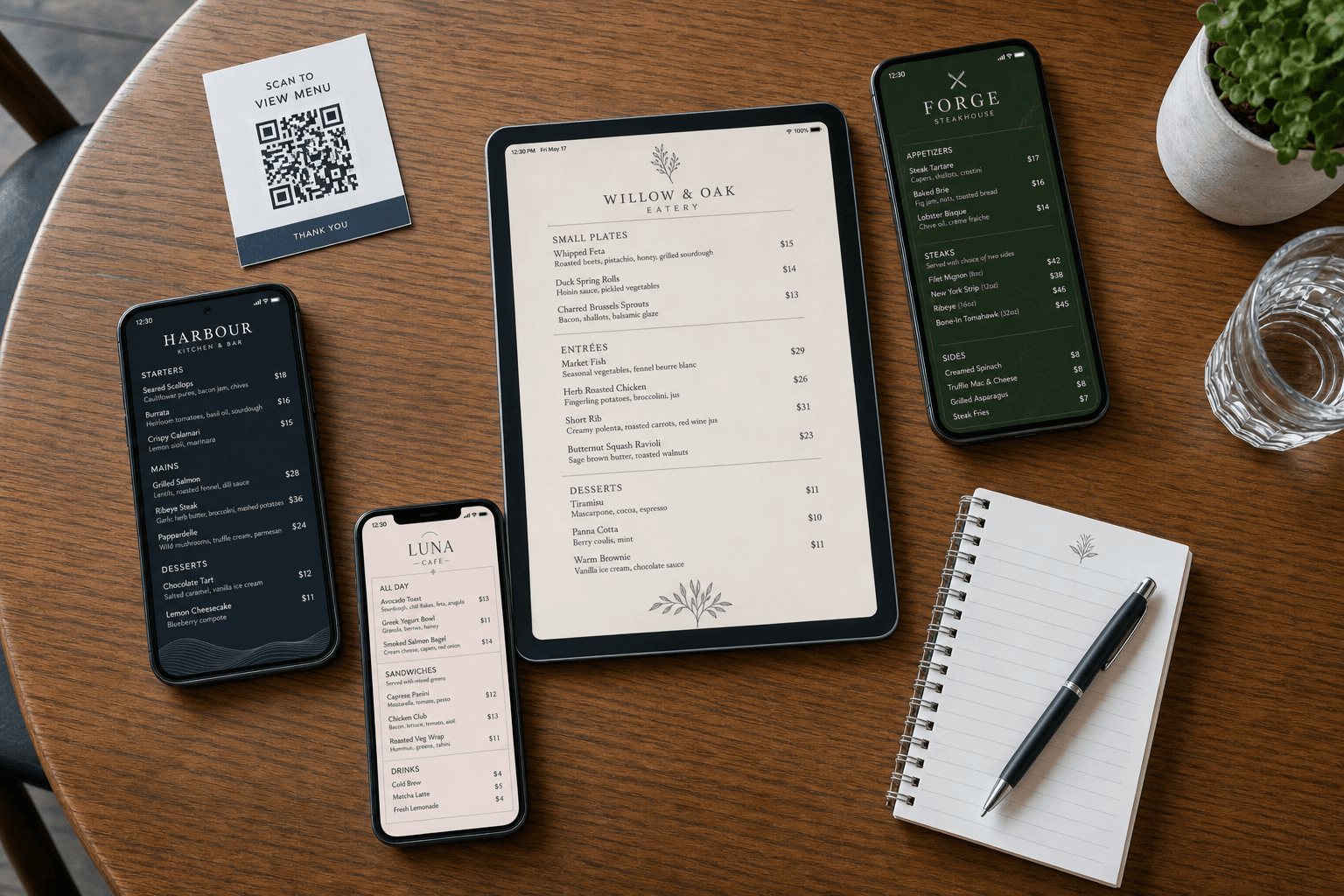
You've built your digital menu, generated a QR code, and you're ready to swap out those laminated paper menus for good. Before you print a hundred table tents and tape codes to every surface in your dining room, stop for one hour and test properly. One hour of structured testing now can save you from a week of confused guests, bad first impressions, and panicked reprints later.
This guide walks you through exactly how to test your QR code menu across the devices and scenarios your real customers will use — before a single guest sees it.
Why Device Testing Matters More Than You Think
Most restaurant owners test their QR menu once, on their own phone, and call it done. The problem is that your guests aren't all using your phone. They're arriving with a mix of older iPhones, mid-range Androids, budget tablets, and the occasional flip-phone-era holdout who will borrow a friend's device. Each of those devices renders your menu differently.
Here's what can go wrong if you skip thorough testing:
- Images don't load on slower connections because file sizes weren't optimized.
- Text overflows or gets cut off on smaller screens because the layout wasn't truly responsive.
- The QR code itself fails to scan under dim restaurant lighting because the contrast or print size is too small.
- Sections or categories are missing because a draft was published instead of the final version.
- Fonts render incorrectly on Android browsers that don't support certain web fonts.
- Ordering buttons don't work on older iOS versions because of JavaScript compatibility gaps.
None of these are catastrophic on their own, but together they erode guest trust fast. A guest who can't open your menu in the first fifteen seconds will flag down a server — or worse, quietly decide your restaurant isn't worth the friction.
Build Your Device Testing Kit
You don't need a professional QA lab. You need a representative spread of devices. Aim to test on at least five to seven distinct combinations of device and operating system before launch.
The minimum viable device list
- A current iPhone (iOS 16+) using Safari — Safari is the dominant mobile browser for iPhone users and has its own rendering quirks.
- An older iPhone (iOS 13–15) — A surprising number of guests are still on older models. Font scaling and certain CSS properties behave differently here.
- A current Android flagship using Chrome — Chrome on Android is the most common Android browser globally.
- A mid-range or budget Android — Screen resolutions and GPU performance vary widely. A menu that looks perfect on a Pixel 8 can look broken on a $150 Android.
- A tablet (iPad or Android) — Guests at tables with kids, or guests who simply prefer larger screens, will use tablets. Make sure your layout doesn't stretch awkwardly.
- A desktop or laptop browser — Less common in-restaurant, but relevant if you're also using your menu as a web presence or linking to it from your website.
Ask staff, friends, or family to lend you their devices for thirty minutes. Most people are happy to help. You can also use browser developer tools to simulate device sizes in a pinch, but nothing replaces testing on real hardware.
Step-by-Step Testing Checklist
Work through this checklist systematically on each device. Don't rush it.
1. Scan the QR code itself
Don't just open the URL directly — scan the actual QR code the way your guests will. Use the native camera app on iOS and Android (not a third-party scanner). Then test with a dedicated QR scanner app as a backup.
Check for:
- Does the code scan within two to three seconds under normal room lighting?
- Does it scan from a distance of 8–12 inches, which is typical table-to-phone distance?
- Does it scan if the printed card is slightly curved (as it would be on a table tent)?
- Does the code still scan if there's a glare from overhead lighting?
If scanning is slow or fails, your QR code image may be too small, the contrast too low, or the print quality too poor. Reprint at a larger size (at least 3×3 cm for table use) and use high-contrast black on white.
2. Check load time on a real network
Switch your test device to mobile data — not your restaurant's Wi-Fi — and time how long the menu takes to fully load. Guests without Wi-Fi access will use their own data. If your menu takes more than three seconds to load on a standard 4G connection, you have a performance problem.
Common culprits: uncompressed hero images, too many embedded fonts, or a hosting platform that's slow to serve assets. A well-built contactless menu should load fast even on modest connections.
3. Review every section and category
Scroll through the entire menu on each device. Don't skim. Look at every category, every item, every price. Specifically check:
- Are all categories visible and correctly labeled?
- Do item descriptions wrap cleanly without overflowing their containers?
- Are prices aligned and readable?
- Do item images (if used) load and display at the correct aspect ratio?
- Are dietary icons or allergen labels rendering correctly?
4. Test navigation and interactive elements
If your menu has category tabs, a sticky header, a search bar, or section jump links, test every single one. Tap each tab. Use the search function if present. Scroll to the bottom and back to the top.
On touchscreens, pay attention to tap targets. Buttons and links should be at least 44×44 pixels to be reliably tappable with a finger. If you find yourself having to tap twice or zoom in to hit a button, your guests will too.
5. Test ordering functionality end to end
If your menu includes online ordering, test the complete flow: add an item to the cart, adjust the quantity, apply any modifiers or notes, proceed to checkout, and confirm the order goes through. Do this on at least three different devices. A broken checkout on one browser type can silently kill a significant portion of your online orders.
6. Check landscape orientation
Most guests view menus in portrait mode, but some will rotate their phone to landscape — especially on smaller screens when they want to see more text. Rotate each test device and make sure the layout reflows gracefully rather than cutting off content or creating a horizontal scrollbar.
7. Verify the URL and any redirects
Confirm that the URL your QR code points to is the final, correct, published URL — not a draft preview link, not a redirect chain with three hops, not an HTTP link that should be HTTPS. Open the URL directly in a browser and make sure it loads without any security warnings.
Test in Your Actual Environment
Testing at your desk is a start. Testing in your actual restaurant is essential. The environment introduces variables that no desktop simulation can replicate.
Lighting conditions
Dim dining rooms, candles, and colored ambient lighting all affect how well a QR code scans and how readable your menu is on screen. Sit at a few different tables at the time of day you'll actually be open and scan the code from those exact positions. If your dinner service runs with low lighting, test at that lighting level.
Wi-Fi availability and dead zones
If you're offering Wi-Fi to guests, walk the entire dining area with a test device connected to your guest network and confirm the signal is strong enough to load the menu quickly at every table. Dead zones in corners or near the kitchen are common. Either extend your Wi-Fi coverage or make sure your menu loads fast enough on mobile data to compensate.
Physical placement of QR codes
Place your QR code holders exactly where they'll be during service and scan from the natural seated position. A code that scans fine when you're standing over it may be harder to scan from a seated angle if it's lying flat on the table. Angled table tents or menu card holders generally scan more reliably than flat stickers.
Common Issues and How to Fix Them
Menu looks great on iPhone but broken on Android
This is almost always a CSS compatibility issue. Android Chrome and iOS Safari handle certain properties — particularly around fonts, flexbox behavior, and input styling — differently. If you're using a hosted platform like MenuHoster, these issues are typically handled for you. If you built a custom menu, audit your CSS for vendor-prefixed properties and test with browser dev tools set to Android viewport sizes.
Images load slowly or not at all
Compress all images before uploading. Aim for JPEG files under 150KB for menu item photos. Use WebP format if your platform supports it. Avoid embedding full-resolution photos shot on a DSLR without resizing them first.
QR code doesn't scan reliably
Increase the print size, ensure the quiet zone (white border around the code) is intact, and use a high-resolution vector or PNG export rather than a low-res JPEG. Avoid placing QR codes on busy patterned backgrounds. If you used a free tool that generated a low-quality code, consider regenerating it with a more reliable platform.
Menu shows old content after an update
Browser and OS-level caching can cause guests to see a previous version of your menu. Most hosted platforms handle cache-busting automatically. If you're self-hosting, make sure your server sends appropriate cache headers and consider appending a version query string to your URL when you push major updates.
Create a Pre-Launch Sign-Off Process
Don't go live until at least two people — ideally someone who didn't build the menu — have run through the full checklist independently. Fresh eyes catch things you've become blind to after staring at the same menu for days.
Create a simple sign-off sheet with the device list and checklist items. Have each tester initial each item. This sounds formal for a small restaurant, but it takes fifteen minutes and prevents the kind of embarrassing launch-day problems that generate one-star reviews before you've even served your first table.
Once you've signed off, do one final check: confirm the QR code on the actual printed or displayed material — not just a digital copy of it — scans correctly. Print quality, lamination, and material finish can all affect scanability in ways a screen preview won't reveal.
If you're using a digital menu platform that allows you to update content without changing the QR code URL, you're in good shape for ongoing maintenance too. That means future menu changes — new dishes, seasonal updates, price adjustments — won't require reprinting your QR codes.
After Launch: Keep Testing
Testing isn't a one-time event. Every time you make a significant change to your menu — a new section, a redesign, a new ordering integration — run through the core checklist again on at least two or three devices. It takes fifteen minutes and it's the cheapest insurance you have against a degraded guest experience.
Also pay attention to guest behavior after launch. If servers are frequently being asked "I can't open the menu," that's a signal something is wrong for a segment of your guests. Ask which device they're on, reproduce the issue, and fix it. Real-world feedback is the best QA tool you have.
Frequently Asked Questions
How many devices do I really need to test on before launching?
At a minimum, test on a current iPhone using Safari, a current Android using Chrome, and one older device (either platform). That covers the vast majority of your guests. If you can add a tablet and one more older device, you'll have very high confidence in your launch. Five devices total is a practical and achievable target for most independent restaurants.
Do I need to test on every browser, or just the default ones?
Focus on the default browsers first: Safari on iOS and Chrome on Android. These account for the overwhelming majority of mobile web traffic. Firefox on Android and Samsung Internet are worth a quick check if you have the devices available, but they're lower priority than getting Safari and Chrome right.
What's the minimum print size for a QR code to scan reliably?
For table use at typical reading distance (20–30 cm), a QR code should be at least 3×3 cm (roughly 1.2×1.2 inches). Larger is better. For wall-mounted displays viewed from further away, scale up proportionally. Always include a quiet zone — a clear white border of at least four modules wide — around the code.
Should I test my QR menu on a slow internet connection?
Yes. Throttle one of your test devices to a slow 3G connection (most Android developer settings allow this) and load your menu. If it takes more than five seconds, your guests in areas with poor signal will have a bad experience. Optimize images and consider whether your platform serves content from a fast CDN.
What if my menu looks fine on all devices but guests still complain they can't open it?
The most common cause is a broken or expired QR code URL — especially if you've migrated platforms or changed your menu's URL after printing the codes. Verify that the URL embedded in your QR code still resolves correctly. The second most common cause is a QR code that's been printed too small or with insufficient contrast. Reprint with a larger, higher-contrast version and the complaints usually stop.
Ready to launch a QR code menu that works flawlessly on every device from day one? Create your menu with MenuHoster — our platform is built for mobile-first performance, handles updates without changing your QR code, and gives you a clean, fast menu your guests can open in seconds. See our pricing and get set up today.
MenuHoster Team
Helping restaurants go digital