How to Add Daily Specials to a Digital Menu Without Reprinting
Updated:
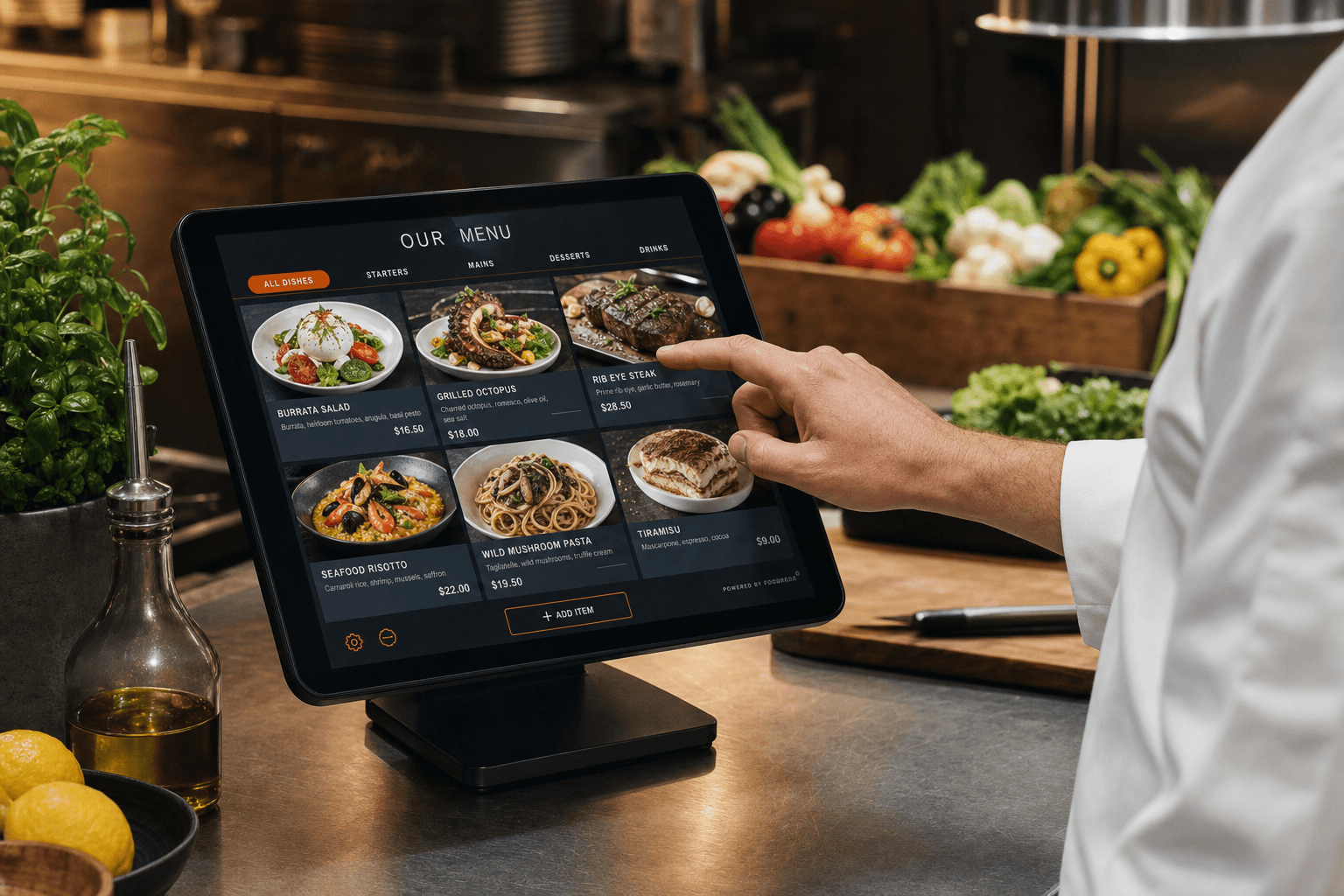
Printing menus for daily specials is one of those restaurant habits that feels normal until you actually add up the cost—design time, printer ink or print shop fees, lamination, and the labor of swapping inserts before every service. Then a special sells out by 7 p.m. and you spend the rest of the night apologizing to guests who ordered something that no longer exists.
A digital menu solves all of this. You can add, edit, hide, or remove a special in under two minutes from your phone, and every guest who scans your QR code sees the updated version instantly. This guide walks through exactly how to do it, what to put in each special listing, and how to build a repeatable workflow so updating specials becomes a two-minute habit rather than a daily headache.
Why Reprinting Daily Specials Is a Losing Game
Before getting into the how, it's worth being honest about what printed specials actually cost you:
- Money: Even basic laser prints add up. A restaurant running true daily specials can spend $1,000–$2,000 a year on paper, ink, and laminate pouches alone.
- Time: Someone has to design or type the insert, print it, cut it, and slip it into every menu or table tent before service. That's 20–45 minutes on a good day.
- Accuracy: Printed specials can't be un-printed. If a supplier doesn't deliver, if a dish sells out, or if the price changes, your staff is left verbally correcting every table—which erodes trust.
- Flexibility: Want to push a slow-moving protein as a special on a Tuesday? With print, you're locked in once the menus are out. With a digital menu, you can make that call at 4 p.m. and have it live before the first cover sits down.
Switching to a digital menu doesn't mean abandoning the charm of a handwritten chalkboard or the theater of a server describing specials tableside. It just means the source of truth is always accurate and always up to date.
How Digital Menus Handle Specials: The Basics
Most digital menu platforms—including MenuHoster—let you organize your menu into sections. The simplest approach for daily specials is to create a dedicated section at the top of your menu called "Today's Specials" or "Chef's Features." Items in that section can be:
- Added fresh each morning or afternoon before service
- Hidden with a single toggle when they sell out
- Deleted at the end of service and replaced the next day
- Marked with a badge or label (like "Limited" or "New") to draw the eye
Because your QR codes point to a live URL—not a static PDF—the moment you save a change in your dashboard, every guest who scans the code sees it. No reprinting. No re-laminating. No new QR codes to generate.
If you're still working from a PDF menu, now is a good time to convert it. You can turn a PDF menu into a scannable QR menu in minutes, and from there you'll have a live, editable version you can update any time.
Setting Up Your Specials Section: Step by Step
Step 1: Create a dedicated "Today's Specials" section
Log into your MenuHoster dashboard and add a new menu section. Name it something clear and appetizing: Today's Specials, Chef's Table, or This Week's Features. Drag it to the top of your menu so it's the first thing guests see when they open the page.
Step 2: Add a placeholder item or leave it empty overnight
You have two options. Some operators prefer to leave the section empty and populate it fresh each day. Others keep a placeholder item with a note like "Check back at 5 p.m. for tonight's features." Either works. What matters is that the section exists and is easy to find in your dashboard.
Step 3: Build a template for your special listings
Consistency saves time. Every special you add should follow the same format so you're not reinventing the wheel each day. A solid template looks like this:
- Name: Short, evocative, specific (e.g., "Pan-Seared Halibut" not just "Fish Special")
- Description: Two to three lines covering the key ingredients, preparation style, and any allergen callouts
- Price: Always include it. Guests who can't see a price assume it's expensive.
- Photo: Optional but powerful. Even a quick phone shot adds perceived value. (See our guide on building a great restaurant menu for photo tips.)
- Label or badge: Use "Limited," "Today Only," or "Chef's Pick" to create urgency
Step 4: Publish and verify on your phone
After saving, scan your own QR code with your phone to confirm the special appears correctly. This takes 30 seconds and catches any typos or formatting issues before your guests see them.
Step 5: Hide or delete at end of service
When a special sells out, hide it immediately—don't wait until closing. Most platforms have a visibility toggle that takes one tap. At the end of the night, either delete the items or leave them hidden so you can reference them when planning next week's rotation.
Building a Repeatable Daily Workflow
The biggest reason restaurants fall back on printed specials isn't cost—it's habit. If updating your digital menu feels unfamiliar or time-consuming, you'll revert. The fix is to make it a defined part of your daily prep routine.
Here's a simple workflow that takes under five minutes:
- Morning (or afternoon before dinner service): Chef confirms the special with the manager. One person is designated to enter it into the menu—usually the manager on duty or a lead server.
- 2–3 hours before service: Special is entered into the dashboard with name, description, price, and photo if available. Published and verified on a phone.
- During service: If a special sells out, whoever is managing the floor hides it immediately from the dashboard (accessible on any smartphone).
- After close: Remaining specials are hidden or deleted. Takes 60 seconds.
The key is assigning ownership. When everyone assumes someone else will update the menu, nobody does. Pick one person per shift and make it part of their opening or closing checklist.
Writing Special Descriptions That Actually Sell
A digital menu gives you more real estate than a chalkboard. Use it. Guests reading a digital menu are in browse mode—they're open to being sold on something. A well-written description can be the difference between a special that moves and one that sits.
A few principles:
- Be specific about sourcing when it matters: "Local farm egg" or "line-caught cod" adds value without feeling pretentious.
- Name the preparation method: "Slow-braised," "wood-grilled," or "house-fermented" signals effort and quality.
- Include the accompaniments: Guests want to know what comes with it. "Served with roasted fingerling potatoes and herb butter" is more compelling than just the protein name.
- Flag allergens clearly: If a special contains a common allergen, note it in the description. This protects your guests and reduces server interruptions.
- Keep it under 40 words: Long descriptions get skimmed. Hit the highlights and stop.
For more on this, see our article on common menu mistakes that cost you sales—many of the same principles apply to specials.
Using Specials Strategically, Not Just for Leftovers
Daily specials have a reputation for being a way to move surplus inventory. That's fine—it's smart business. But a digital menu makes it easy to use specials more strategically:
Test new dishes before committing to a menu reprint
Want to know if a new pasta dish belongs on your permanent menu? Run it as a special for two weeks. Track how often it sells. Read the feedback. If it performs, add it to your main menu with confidence. This is essentially a real-world A/B test with zero printing cost.
Respond to seasonal availability in real time
When your produce supplier shows up with beautiful heirloom tomatoes or a fishmonger calls with an unexpected catch, you can have a special built and published before lunch service. That kind of responsiveness is impossible with a printed menu.
Drive traffic on slow days
A well-priced Tuesday special—promoted on your social channels with a link to your online menu—can meaningfully lift a slow cover count. Because your menu is a live URL, you can share it directly in an Instagram story or Facebook post and guests click straight through to see the special.
Create perceived scarcity
Labels like "Limited Availability" or "Only 8 Portions" create urgency. On a digital menu, you can add and remove these labels in seconds. When the special is gone, hide it. Guests who missed it this time will remember to order it early next time.
Promoting Your Daily Specials Beyond the Table
One underused advantage of a digital menu is that it's shareable. Your QR code points to a URL. That URL can be posted anywhere.
- Instagram and Facebook Stories: Post a photo of the special with a link to your menu. Followers can tap through to see the full description and price.
- Google Business Profile: Update your "Posts" section with today's special. It takes two minutes and shows up in local search results.
- SMS or email list: A short text—"Tonight's special: Pan-Seared Duck Breast $28. Reserve your table: [link]"—is highly effective for regulars.
- Table cards and window signage: A simple card that says "Scan for today's specials" with your QR code does the work for you. You print that card once and it's evergreen.
If you're not yet using QR codes as a marketing tool, the article on QR codes for restaurant marketing beyond the menu is worth a read.
Handling Sold-Out Specials Gracefully
Selling out a special is a good problem to have—but only if you handle it cleanly. The worst guest experience is scanning a menu, deciding on the special, and then being told by a server it's gone. Here's how to avoid it:
- Assign one person per shift to monitor and hide sold-out items. This should be a front-of-house responsibility, not the kitchen's.
- Set a rough portion count before service and hide the item when you hit 80% sold. Better to hide it early than disappoint the last few guests.
- Add a "Sold Out" label instead of hiding if you want guests to know it existed. Some operators do this to build FOMO for the next visit.
- Brief your staff on the specials before every service so they can describe them confidently and upsell them proactively—before guests even open the menu.
Creating Separate Menus for Lunch and Dinner Specials
If your restaurant runs distinct lunch and dinner services with different specials for each, a digital menu platform makes it straightforward to manage both. You can either:
- Maintain a single menu with a "Lunch Specials" and "Dinner Specials" section, hiding the irrelevant one during each service
- Create two separate menus—one for lunch, one for dinner—and use different QR codes or a time-based URL for each
MenuHoster supports multiple menu configurations, so you can build this out without juggling multiple platforms. For more detail on structuring your menu this way, see the guide on creating separate lunch, dinner, and brunch menus.
Frequently Asked Questions
Do I need to generate a new QR code every time I update my specials?
No. Your QR code points to a permanent URL. When you update your digital menu, the content at that URL changes automatically. The QR code itself never needs to be reprinted or replaced—it always delivers the latest version of your menu.
What if I don't have a photo for a new special?
Skip the photo rather than use a bad one. A clean text listing with a strong description performs better than a blurry or unappetizing image. If you want to add a photo later, you can upload it at any time without disrupting the live menu.
How long does it take to add a new special to a digital menu?
With a little practice, under two minutes. You're entering a name, a short description, and a price. If you have a photo ready, add another 30 seconds to upload it. The first few times may take longer as you get familiar with the dashboard, but it becomes very fast.
Can I schedule specials to appear and disappear automatically?
Some platforms support scheduled visibility, which lets you set a special to go live at 5 p.m. and disappear at close. Check your platform's features. Even without scheduling, manually toggling visibility takes only seconds and is easy to build into your opening and closing routines.
What's the best way to let regular customers know about daily specials?
A combination of in-restaurant QR table cards (which are evergreen and always show the current menu) and a simple social media post or SMS message to your regulars works well. You only need to share the link to your digital menu—guests click through and see whatever is live at that moment.
Ready to stop reprinting and start updating? Build your digital menu on MenuHoster and make daily specials a two-minute task. Your guests will always see what's fresh, your staff won't have to apologize for sold-out items, and you'll never pay a print shop for a one-day insert again. See MenuHoster's pricing and get started today.
MenuHoster Team
Helping restaurants go digital