How to Integrate Your Digital Menu with Google Business Profile for More Foot Traffic
Updated:
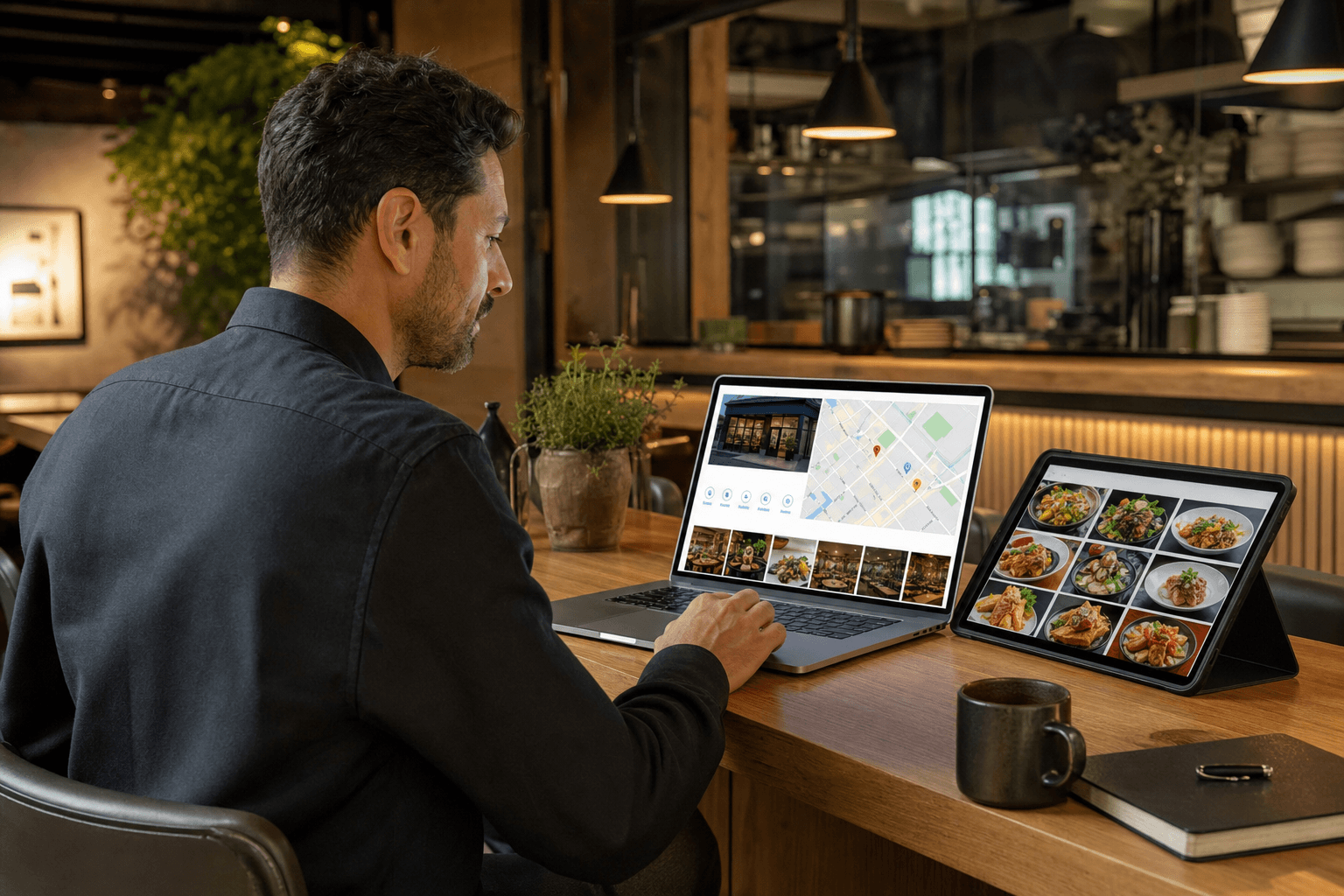
When a hungry person searches "tacos near me" or "best brunch in [your city]," Google doesn't just show your name and address. It shows your hours, photos, reviews — and increasingly, your menu. If your menu isn't there, or if it's a blurry PDF scan from 2019, you're losing potential guests before they ever walk through your door.
Integrating your digital menu with your Google Business Profile (GBP) is one of the highest-leverage, lowest-cost things you can do for local foot traffic. This guide walks you through exactly how to do it, what to avoid, and how to keep everything working as your menu evolves.
Why Google Business Profile Matters for Restaurants
Google Business Profile is the free listing that appears when someone searches for your restaurant by name, or when your restaurant surfaces in a local "near me" search. It powers your presence on Google Search and Google Maps — the two places most new guests will encounter you first.
According to Google's own data, businesses with complete profiles are significantly more likely to be considered reputable and receive visits. For restaurants specifically, the menu section is one of the most-viewed parts of a listing. Diners want to know what you serve and roughly what it costs before they commit to walking in or making a reservation.
Here's what a well-integrated digital menu does for your GBP listing:
- Reduces friction: Guests don't have to click away to a third-party site or squint at a photo of your paper menu.
- Builds confidence: Seeing real dishes with prices and photos signals that you're an active, professional operation.
- Improves local search ranking: A complete, regularly updated profile signals relevance to Google's algorithm.
- Captures high-intent searchers: Someone looking at your menu on Google Maps is moments away from deciding to visit.
Understand How Google Displays Restaurant Menus
Before you start linking things, it helps to understand the two ways Google can show your menu.
The Menu URL field
Google Business Profile has a dedicated "Menu URL" field in your profile settings. When you add a link here, Google displays a "Menu" button on your listing that takes users directly to that URL. This is the most direct integration and the one you have full control over.
Google's own menu editor
Google also lets you manually enter menu items — dish names, descriptions, prices, and photos — directly inside GBP. This creates a structured menu that Google can display natively in search results, sometimes even showing individual dishes in rich results. You can use both approaches together, and you should.
The catch: Google's built-in editor is somewhat limited and time-consuming to maintain. If your menu changes frequently, keeping it updated inside GBP manually becomes a real chore. That's why having a hosted digital menu as your primary source of truth — and linking it to GBP — is the smarter long-term strategy.
Step 1: Create a Clean, Linkable Digital Menu
The foundation of this entire integration is having a digital menu with its own stable URL. A PDF file stored on Google Drive, a screenshot posted to Instagram, or a menu buried inside a third-party delivery app won't cut it. You need a real, mobile-friendly web page that loads fast and looks professional.
When building or choosing your digital menu, prioritize:
- Mobile performance: The majority of Google searches happen on phones. Your menu must load quickly and be easy to read on a small screen.
- A stable URL: The link you give Google should not change every time you update your menu. It should be a permanent address that always reflects your current offerings.
- Clear structure: Sections, item names, descriptions, and prices should be easy to scan. Google's crawlers also read this content, which can help with search visibility.
- No login walls or pop-ups: If a guest (or Google's bot) has to dismiss a pop-up or create an account to see your menu, you've already lost them.
With MenuHoster's online menu maker, you get a hosted menu page with a permanent, shareable URL the moment you publish. You can update items, prices, and photos at any time without the URL changing — which means your Google listing always points to something accurate and current.
Step 2: Add Your Menu URL to Google Business Profile
Once your digital menu is live, adding it to your GBP listing takes about two minutes.
- Go to business.google.com and sign in to the Google account that manages your listing.
- Select your business location.
- Click Edit profile, then navigate to the Contact tab.
- Scroll down to find the Menu link field (it may be labeled "Menu URL" depending on your interface).
- Paste your digital menu URL and save.
Google will review the link before it goes live — this usually takes a few hours to a couple of days. Once approved, a "Menu" button will appear on your listing in both Search and Maps.
Important: Google may also automatically pull menu data from third-party sources (like Yelp or delivery platforms) and display it on your listing. If you see menu information on your GBP that you didn't add, it may be outdated or inaccurate. You can report incorrect menu data through the "Suggest an edit" feature, and having your own authoritative menu URL linked helps signal to Google which version is correct.
Step 3: Manually Add Key Items to Google's Menu Editor
In addition to the menu URL, take time to enter your most important dishes directly into Google's menu editor. You don't need to replicate your entire menu — focus on your signature items, most popular dishes, and anything visually compelling.
To access the menu editor:
- In your GBP dashboard, click Edit menu (or find it under the "Food & drink" or "Services" section depending on your business category).
- Add sections (e.g., Appetizers, Mains, Desserts, Drinks).
- For each item, add: name, description (keep it to 1–2 sentences), price, and a photo.
The photos matter more than most owners realize. Google can display individual dish photos directly in search results, and a great food photo can be the difference between a searcher clicking on your listing versus a competitor's. Use real, well-lit photos — not stock images.
If you're working from an older paper menu and want to speed up the transition, converting your PDF menu to a digital QR menu is a fast starting point before you build out a fuller hosted version.
Step 4: Keep Your Menu and Listing in Sync
The most common mistake restaurants make after setting up this integration is letting it go stale. A guest sees a dish on your Google listing, comes in specifically for it, and finds out you stopped serving it six months ago. That's a bad experience that leads to negative reviews.
Build a simple habit: any time you update your menu, check whether your GBP also needs an update. This means:
- Removing seasonal items when they're no longer available.
- Updating prices when they change.
- Adding new signature dishes with photos as soon as they're menu-ready.
- Updating your hours if they change seasonally.
If you use a hosted digital menu platform where updates happen in real time, the menu URL you've linked to GBP will always be current. The manual entries inside Google's editor still need periodic attention, but you can limit those to your top 10–15 items to reduce the maintenance burden. For a deeper look at keeping everything consistent, see our guide on keeping your online menu and in-house menu in sync.
Step 5: Optimize the Rest of Your GBP Listing
Your menu integration works best when the rest of your profile is also complete and well-maintained. Google rewards completeness, and guests make faster decisions when they have all the information they need in one place.
Photos
Upload at least 10–15 high-quality photos: exterior shots, interior ambiance, food, drinks, and staff. Update them seasonally. Listings with more photos get significantly more clicks and direction requests than listings with few or no photos.
Business description
Write a clear, honest 2–3 sentence description of what makes your restaurant worth visiting. Mention your cuisine type, any standout features (wood-fired oven, farm-to-table sourcing, family-owned since 1987), and your neighborhood. Avoid keyword stuffing — write for humans first.
Attributes
GBP lets you flag attributes like outdoor seating, wheelchair accessibility, LGBTQ+-friendly, takeout available, and more. These filter into search results when people are looking for specific experiences. Fill them out completely.
Posts
Google Posts are short updates that appear on your listing — think of them as mini social media posts for Google. Use them to promote daily specials, seasonal menu additions, events, or limited-time offers. Posts expire after seven days, so a weekly posting habit keeps your listing looking active.
Q&A
The Q&A section on your GBP listing is publicly visible and anyone can post a question — or an answer. Monitor it regularly and answer questions yourself before someone else does with inaccurate information. Seed it with a few common questions you actually get ("Do you take reservations?" "Is there parking nearby?") and answer them yourself.
Using QR Codes to Bridge Online and In-Person
Your Google listing and your in-restaurant experience should feel connected. One practical way to do this: use QR codes that link to the same digital menu URL you've given Google. When a guest scans the QR code at their table and sees the same clean, professional menu they previewed on Google Maps, it reinforces trust and consistency.
You can also use QR codes in your Google Posts — for example, posting a seasonal menu update with a QR code linking directly to that section of your menu. This creates a seamless path from discovery to decision to visit. Our restaurant menu templates are designed to work beautifully both as linked pages and as QR code destinations.
Track What's Working
Google Business Profile provides built-in performance data that most restaurant owners underuse. In your GBP dashboard, check the "Performance" section regularly. Key metrics to watch:
- Search queries: What terms people are using to find your listing.
- Direction requests: How many people asked for directions to your location — a strong proxy for foot traffic intent.
- Website clicks: How many people clicked through to your website or menu link.
- Phone calls: Calls initiated directly from your listing.
- Photo views: Which photos are getting the most attention.
If you update your menu and see a spike in direction requests or clicks in the following week, that's a signal that fresh content is driving engagement. Use this data to decide how often to refresh your GBP posts and menu items.
Common Mistakes to Avoid
- Linking to a PDF: PDFs are hard to read on mobile, don't load reliably on all devices, and Google can't crawl them effectively for menu data.
- Using a delivery app menu as your primary link: Third-party platforms take a cut of orders and can change your menu's appearance without your input. Own your menu URL.
- Ignoring the Q&A section: Unanswered questions look neglected and can be answered incorrectly by strangers.
- Setting it and forgetting it: A menu with prices from two years ago actively hurts your credibility.
- Inconsistent information: If your GBP says you close at 10pm but your website says 9pm, guests lose trust. Audit all your online listings for consistency at least once a quarter.
Frequently Asked Questions
Can I link directly to a specific section of my digital menu on Google Business Profile?
Yes, if your digital menu platform supports anchor links or section URLs, you can link to a specific section (like "Lunch Menu" or "Cocktails"). However, for the main Menu URL field in GBP, it's generally best to link to your full menu page so guests can browse everything. Use Google Posts to highlight specific sections or seasonal additions with more targeted links.
How long does it take for my menu link to appear on my Google listing?
After you add or update your menu URL in Google Business Profile, Google typically reviews and approves the change within a few hours to two business days. If it's been longer than 48 hours and the link hasn't appeared, double-check that the URL is publicly accessible (no login required) and try saving it again.
Will adding my menu to Google Business Profile help my restaurant rank higher in local search?
A complete GBP profile — including an active menu link, regular photos, and Google Posts — is a positive signal for local search ranking. It won't single-handedly move you to the top of results, but it contributes to the overall completeness and activity score that Google's local algorithm rewards. Combined with good reviews and accurate business information, it makes a meaningful difference.
What if Google is showing an outdated version of my menu that I didn't upload?
Google sometimes pulls menu data automatically from third-party sources like Yelp, delivery platforms, or older web pages. To correct this, add your own accurate menu URL in the Menu link field and manually enter your current items in Google's menu editor. You can also flag incorrect information using the "Suggest an edit" option on your listing. Over time, your owned data typically takes precedence.
Do I need a website to link my menu to Google Business Profile?
No. You don't need a full website — you just need a publicly accessible URL for your menu. A hosted digital menu page (like the ones MenuHoster provides) gives you a permanent, shareable link that works perfectly as your GBP menu URL, even if you don't have a separate restaurant website.
Ready to give your Google listing a menu worth clicking? Create your digital menu on MenuHoster in minutes — no design skills needed, no developer required. You'll have a fast, mobile-friendly menu page with a permanent URL you can plug directly into your Google Business Profile today. Check out our simple, affordable pricing and start turning more searchers into seated guests.
MenuHoster Team
Helping restaurants go digital