How to Make a QR Code Menu That Customers Actually Scan
Updated:
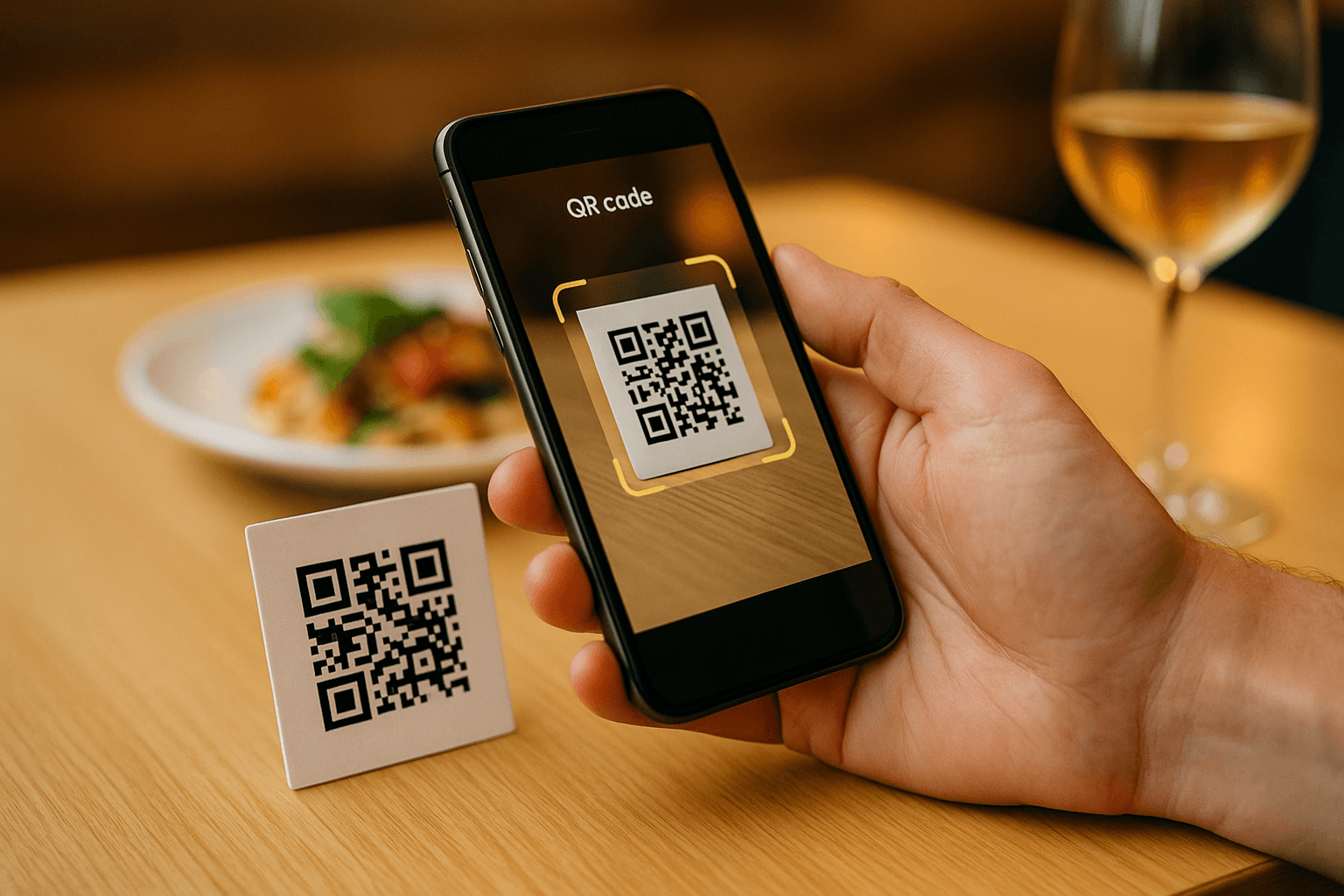
A QR code menu is only useful if guests actually pick up their phones and scan it. Plenty of restaurants have printed a QR code, taped it to the table, and then watched customers wave down a server to ask for a paper menu instead. The technology isn't the problem — the execution is.
This guide walks you through every decision that determines whether your QR menu gets ignored or becomes the default way your guests browse and order. We'll cover the menu itself, the QR code, where you put it, and the small trust signals that make the difference.
Why Most QR Menus Fail
Before getting into the how, it helps to understand the why. When a guest ignores your QR code, it's almost always one of three things:
- The destination is bad. The code links to a PDF that takes 10 seconds to load and requires pinching and zooming to read. Guests give up immediately.
- There's no clear instruction. A bare QR code with no context makes people hesitant. They don't know what they're scanning or what will happen.
- The placement is awkward. A code on a wall poster or a small sticker on the back of a condiment rack isn't where people look when they sit down and want to order.
Fix those three things and your scan rate will climb. The sections below show you exactly how.
Start With a Great Digital Menu
The QR code is just a doorway. What's behind it matters far more. If the page behind the code is slow, hard to read, or looks like a scanned PDF, you've already lost.
Use a mobile-first menu page, not a PDF
PDFs are the single biggest reason QR menus fail. They weren't designed for phones, they don't reflow text, and they require guests to zoom into tiny columns of type. A proper digital menu loads instantly as a web page, adapts to any screen size, and lets guests scroll naturally.
Organize your menu logically
Group items into clear sections — Starters, Mains, Desserts, Drinks — and put your highest-margin or most popular items near the top of each section. On a phone, people scan vertically. Anything buried at the bottom of a long, unsectioned list gets skipped. If you have multiple menus (lunch, dinner, happy hour), make sure they're easy to switch between, not buried in a sub-sub-menu.
Write real descriptions
A digital menu gives you space to describe dishes properly. "Grilled salmon" tells a guest nothing. "Atlantic salmon fillet, lemon-caper butter, roasted fingerling potatoes, wilted spinach" tells them whether it's worth ordering. Good descriptions reduce questions to the server and increase confidence at the point of decision.
Keep prices current
One of the genuine advantages of a digital menu over print is that you can update it in minutes. Use that. Outdated prices erode trust fast — if a guest sees $14 on the menu and gets charged $17, you have a problem. Update your digital menu whenever prices change, even seasonally.
Generate a Reliable QR Code
Not all QR codes are equal. A code that breaks, redirects to an error page, or leads somewhere other than your menu will kill adoption immediately.
Use a dynamic QR code
Dynamic QR codes let you change the destination URL without reprinting the code. This matters because menus change, domains change, and platforms change. With a static QR code, any URL update means reprinting every table card, tent, and poster. With a dynamic code, you update the destination once and every printed code still works. Our QR code menu generator creates dynamic codes tied directly to your live menu page.
Test the code on multiple devices before printing
Scan your QR code on an iPhone, an Android phone, and ideally an older device with a slower connection. If it loads quickly and the menu looks correct on all of them, you're good to print. If anything looks off, fix it before you go to print — reprinting is expensive and wasteful.
Print at the right size and resolution
QR codes need to be at least 2 cm × 2 cm to scan reliably, and larger is better. Export your code as an SVG or high-resolution PNG (at least 1,000 × 1,000 px) so it doesn't pixelate when printed. A blurry or low-contrast QR code is one that phones struggle to read.
Check contrast
Dark code on a light background is the standard for a reason — it's what phone cameras expect. Avoid putting a QR code on a dark background, and don't use colors that reduce contrast below about 70%. A white code on a cream background is a scan that won't happen.
Placement That Actually Gets Scanned
Where you put the QR code determines whether guests see it at the moment they're ready to use it. That moment is when they sit down and look at the table.
Table tents and table cards
A small folded card or tent placed at the center of the table is the most effective placement. It's in the guest's natural line of sight, it's associated with "menu" in their mind, and it's easy to pick up and scan. Keep it clean and uncluttered — one QR code, a short instruction, your restaurant name.
Coasters and placemats
Printing the QR code on a coaster or placemat works well in bars and casual dining settings. Guests handle these items anyway, so the code is hard to miss. Make sure the surface is flat and the code isn't obscured by a glass or plate when someone tries to scan.
Menus and receipts
If you still hand out physical menus, put the QR code on the cover as an alternative. For guests who want to re-order drinks or desserts after the server has moved on, a QR code on the receipt that links to a simplified drinks-and-desserts menu can increase add-on sales.
What to avoid
- Wall signs and posters. Guests don't scan things at head height when they're seated. These are fine as secondary placements but shouldn't be your primary one.
- The front door. Guests arriving don't want to scan a menu on the sidewalk. Save the door for your hours and Wi-Fi password.
- Small stickers on shared items. A QR code on the back of a salt shaker is easy to miss and awkward to scan.
Add Clear Instructions and Trust Signals
A QR code with no context is a mystery. A QR code with a three-word instruction is an invitation.
Label the code
Always include a short line above or below the QR code. Something like "Scan to see our menu" or "View our full menu — scan with your phone camera" removes any ambiguity. Guests don't need to open a special app; modern phones scan QR codes with the native camera. Saying so reduces hesitation, especially for older guests.
Include your restaurant name and logo
A branded QR code card looks intentional and professional. It signals that this isn't a random code someone stuck on the table — it's part of your service. Your name and logo on the card reinforce that trust.
Mention Wi-Fi availability
If your restaurant has free Wi-Fi, print the network name on the table card alongside the QR code. Guests with limited data are more likely to scan if they know they can connect first. This is a small detail that removes a real barrier.
If You Currently Use a PDF Menu
Many restaurants started with a QR-to-PDF setup because it was quick and free. It's a reasonable starting point, but it's worth upgrading. The good news is that moving from a PDF to a proper digital menu doesn't require rebuilding from scratch. You can convert your PDF menu to a QR code menu that's mobile-optimized — your existing content, formatted properly for phones.
Once you've made that switch, your scan rate will almost certainly improve on its own because the experience on the other side of the scan is dramatically better.
Connecting Your QR Menu to Online Ordering
A QR code menu doesn't have to be passive. If your operation supports it, linking your menu to an online ordering flow turns a browsing tool into a revenue tool. Guests can place orders directly from their phones — useful for fast-casual setups, self-service counters, or busy periods when table service is stretched thin.
Even if you don't want full self-ordering, a "tap to order" button that opens a pre-filled message to the server (or a simple order form) reduces friction and speeds up table turns.
Maintaining Your QR Menu Over Time
A QR menu that was great at launch but hasn't been touched in eight months is a liability. Guests who scan and find items that are out of stock, prices that don't match, or dishes that were removed last season lose trust in your operation.
- Update prices immediately when they change — don't wait for a "menu refresh."
- Mark items as unavailable rather than removing them mid-service. It's better to show "currently unavailable" than to have a guest order something you can't make.
- Refresh seasonal items at the start of each season. A summer menu still showing pumpkin soup in July is a bad look.
- Check that the QR code still scans after any platform or URL changes. A broken code is worse than no code.
Measuring Whether It's Working
If your QR menu platform provides analytics — scan counts, page views, time on page — use them. A low scan rate on a table that's always occupied means the code placement or labeling needs work. A high scan rate with a high bounce rate (guests leaving immediately) means the menu page itself needs attention.
Even without formal analytics, you can track this informally: ask your servers how often guests ask for a paper menu. If that number is going down, your QR menu is doing its job.
Frequently Asked Questions
Do customers need a special app to scan a QR code menu?
No. Any modern smartphone — iPhone or Android — can scan a QR code using the built-in camera app. Guests just point their camera at the code and tap the notification that appears. No download required.
What's the difference between a static and a dynamic QR code?
A static QR code encodes the destination URL directly into the code itself. If the URL ever changes, you have to reprint the code. A dynamic QR code points to a short redirect URL that you can update at any time without changing the printed code. For a restaurant menu that changes regularly, dynamic codes are strongly preferred.
How big should a QR code be on a table card?
A minimum of 2.5 cm × 2.5 cm (about 1 inch square) is the practical floor for reliable scanning. For a standard table tent or card, 4–5 cm square is comfortable and scans easily from a normal seated distance. Bigger is generally better — there's no downside to a larger code.
Should I still offer paper menus alongside the QR code?
It depends on your guest mix. Many restaurants keep a small number of paper menus available on request, particularly for guests who are less comfortable with smartphones. The goal isn't to force technology on anyone — it's to make the digital option so easy and appealing that most guests choose it naturally. See our full take in our contactless menu guide.
Can I use the same QR code for multiple menus (lunch, dinner, bar)?
Yes. With a dynamic QR code linked to a well-organized digital menu, you can either display all menus on one page with clear section tabs, or schedule different menus to show at different times of day. This is much cleaner than printing separate codes for each menu and confusing guests about which to scan.
Ready to build a QR code menu your guests will actually use? Try MenuHoster's QR code menu generator — it takes about ten minutes to go from zero to a mobile-optimized menu with a dynamic QR code, no design skills required. Check out our pricing page to find a plan that fits your operation.
MenuHoster Team
Helping restaurants go digital