Embedding a Digital Menu on Any Website: A How-To
Updated:
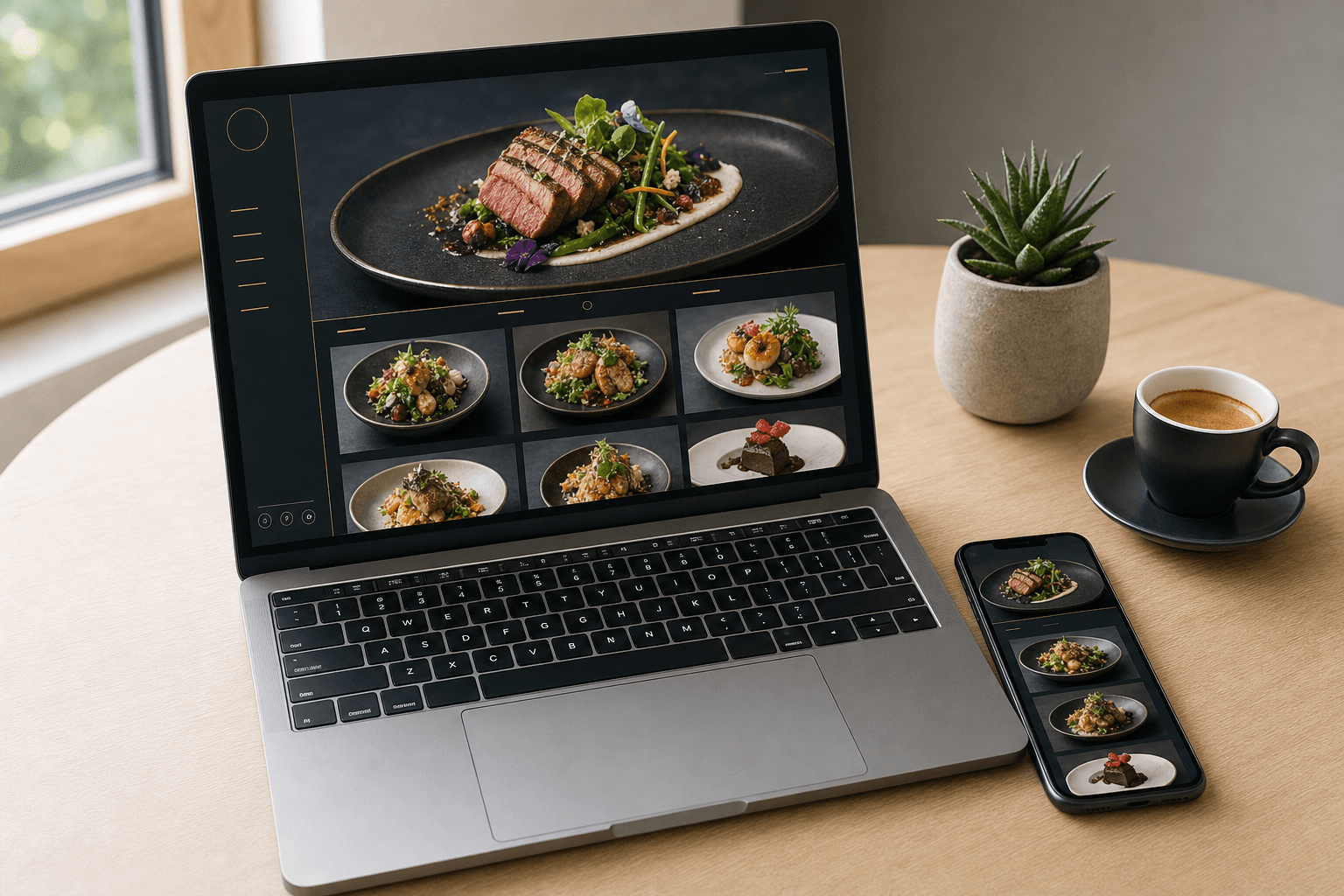
You've built your website — or you're about to — and you want your menu front and center. The problem is that most website builders weren't designed with restaurant menus in mind. Pasting a PDF is clunky, typing everything out by hand means you'll have to update it in two places every time something changes, and third-party delivery apps often won't let you embed their pages at all.
The cleanest solution is to host your menu on a dedicated digital menu platform and then pull it into your existing website. This guide walks you through exactly how to do that — on WordPress, Squarespace, Wix, Webflow, and plain HTML — so your menu is always live, always accurate, and always on-brand.
Why Embed Instead of Copy-Pasting Your Menu
Before getting into the technical steps, it's worth understanding why embedding beats the alternatives.
- Single source of truth. When you update your hosted menu — a price change, a new seasonal item, a sold-out dish — the embedded version on your website updates automatically. No double-editing.
- Faster page loads. A properly hosted menu loads its own assets independently. You're not bloating your website with dozens of food photos.
- Mobile-ready out of the box. A good menu platform is already optimized for phones. You don't have to re-engineer the layout inside your website builder.
- No PDF frustrations. PDFs force users to pinch-and-zoom, can't be indexed well by Google, and look terrible on mobile. An embedded live menu solves all three problems.
If you haven't created your hosted menu yet, start with MenuHoster's online menu maker — it takes under 30 minutes and gives you a shareable URL and embeddable code you can drop into any site.
The Two Main Embedding Methods
There are two practical ways to get a hosted menu onto your website:
1. iframe Embed
An <iframe> is an HTML element that loads an external webpage inside a frame on your page. It's the most universal method and works on virtually every platform. Your menu platform provides a snippet like this:
<iframe
  src="https://menuhoster.com/m/your-menu-slug"
  width="100%"
  height="800"
  style="border:none;"
  loading="lazy"
  title="Our Menu">
</iframe>
You paste that snippet into an HTML block on your site, and your menu appears inline. Visitors never leave your page.
2. Link + Button (Redirect Method)
Sometimes a full inline embed isn't the right fit — your site's layout is narrow, or you'd rather keep the menu on its own full-screen page. In that case, you simply link to your hosted menu URL from a prominent button on your site. This is less seamless but completely valid, especially for mobile-first designs where a full-screen menu page actually looks better than a cramped iframe.
Most restaurants use both: an embedded preview or a "View Menu" button on the homepage, and a dedicated Menu page with the full iframe.
Embedding on WordPress
WordPress is the most common CMS, and embedding is straightforward whether you're using the block editor (Gutenberg) or the classic editor.
Block Editor (Gutenberg)
- Open the page or post where you want the menu.
- Click the + icon to add a new block and search for Custom HTML.
- Paste your iframe code into the block.
- Click Preview to check the result, then Update or Publish.
Classic Editor
- Switch from Visual to Text mode in the editor toolbar.
- Paste the iframe code where you want the menu to appear.
- Switch back to Visual to preview, then save.
Common WordPress gotcha: Some security plugins (Wordfence, iThemes Security) strip iframe tags from content. If your embed disappears after saving, check your plugin settings or whitelist the iframe source domain. Alternatively, use a plugin like Advanced iFrame which handles iframes safely.
Embedding on Squarespace
Squarespace has a built-in Code Block that accepts raw HTML.
- Edit the page where you want the menu.
- Click the + button to add a block and select Code.
- Paste your iframe snippet into the code block editor.
- Make sure Display Source is toggled off.
- Click Apply, then save the page.
Height tip: Squarespace pages have fixed-width content areas. Set your iframe height to at least 900px for a full menu, or use a scrollable iframe by adding overflow: auto to the style attribute. Test on mobile — you may want a taller value for longer menus.
Embedding on Wix
Wix uses its own HTML widget for custom code.
- In the Wix Editor, click Add Elements → Embed Code → Embed HTML.
- An HTML iframe widget appears on the canvas. Click Enter Code.
- Paste your iframe code and click Update.
- Resize the widget on the canvas to fit your layout.
- Publish your site.
Wix limitation: Wix wraps all custom HTML in a sandboxed iframe of its own, which means you're technically nesting iframes. This usually works fine but can occasionally cause scrolling quirks on mobile. Test thoroughly on an actual phone before going live.
Embedding on Webflow
- In the Webflow Designer, drag an Embed element from the Add panel onto your canvas.
- Double-click the Embed element and paste your iframe code.
- Click Save & Close.
- Publish your site.
Webflow gives you fine-grained control over sizing via CSS classes. Wrap your Embed element in a div with width: 100% and set a min-height for the best results across screen sizes.
Embedding on Plain HTML or Custom Sites
If your site is hand-coded or uses a framework like Next.js or plain HTML/CSS, just drop the iframe directly into your markup:
<section class="menu-section">
  <h2>Our Menu</h2>
  <iframe
    src="https://menuhoster.com/m/your-menu-slug"
    width="100%"
    height="900"
    style="border:none; display:block;"
    loading="lazy"
    title="Restaurant Menu">
  </iframe>
</section>
Add loading="lazy" so the iframe doesn't block your page's initial render. For responsive height, consider a CSS aspect-ratio wrapper or use JavaScript to resize the iframe dynamically based on its content height.
Making the Embed Look Great
A technically working embed isn't enough — it needs to look intentional and polished.
Match Your Brand
Choose a menu template that uses your brand colors and fonts. MenuHoster's menu templates are designed to look good in isolation and inside a host website. A white-background menu embedded in a dark-themed site will look jarring — pick a template that complements your site's palette.
Set a Sensible Height
Too short and users get a tiny scrollable box inside your page — a terrible experience. Too tall and there's a lot of dead white space below a short menu. A good default is 900px for a standard café menu; a multi-section restaurant menu may need 1400px or more. Always check on mobile.
Add a Section Heading
Don't just drop the iframe cold. Add an <h2> or a visual divider above it so visitors understand what they're looking at. Something as simple as "What We're Serving" with a short line of copy sets the context.
Pair It With a QR Code
Your embedded menu URL is the same URL you'll use for your QR codes. Use MenuHoster's QR code menu generator to create a scannable code that points to the same hosted menu — so in-person guests and online visitors always see the same, up-to-date version.
Keeping Your Menu Current After Embedding
One of the biggest advantages of embedding a hosted menu is that updates are instant. But only if you actually update the source. Build a habit:
- Schedule a monthly menu audit. Review prices, remove discontinued items, and add seasonal specials.
- Update the hosted menu first. Never edit a printed or PDF version and forget the digital one.
- Use availability toggles. Good menu platforms let you mark items as temporarily unavailable without deleting them — use this for 86'd items rather than removing and re-adding.
- Check the embed after updates. Occasionally clear your browser cache and reload the page to confirm changes are showing correctly.
SEO Considerations for Embedded Menus
Search engines don't index iframe content as part of your page — the content lives on the hosted menu's domain, not yours. This means your menu items won't directly boost your site's SEO via the embed. Here's how to handle that:
- Add a brief text summary above the iframe. A short paragraph listing your cuisine type, signature dishes, and price range gives search engines something to index on your page.
- Use structured data. If you have a developer, add
RestaurantandMenuschema markup to your page's HTML. This helps Google understand what you serve without relying on the iframe content. - Link to the hosted menu URL. Include a "View full menu" text link pointing to your hosted menu page. This creates a crawlable link and gives users an alternative if the iframe has issues.
- Make sure your hosted menu page is indexable. Check that your menu platform doesn't block search engines via
robots.txt— you want Google to be able to find and index that page too.
Troubleshooting Common Embed Problems
The iframe shows a blank white box
The most common cause is a Content Security Policy (CSP) header on the host website that blocks external iframes. Check your server or CDN settings and add the menu platform's domain to the frame-src directive. If you're on a managed platform like Squarespace or Wix, this is usually handled automatically.
The menu is cut off on mobile
Set the iframe width to 100% and make sure your parent container doesn't have a fixed pixel width. Also check that your website's viewport meta tag is set correctly: <meta name="viewport" content="width=device-width, initial-scale=1">.
The embed works on desktop but not mobile
Some mobile browsers restrict iframe scrolling. Add scrolling="yes" to the iframe tag and ensure the menu platform itself is mobile-responsive — if the source page isn't mobile-friendly, no amount of iframe tweaking will fix it.
The menu loads slowly
Add loading="lazy" to defer the iframe until it's near the viewport. Also check whether the menu platform is loading large unoptimized images — this is worth raising with your menu provider.
Frequently Asked Questions
Can I embed a menu on a free website builder plan?
It depends on the platform. Squarespace's free trial and some paid plans support custom HTML code blocks. Wix's free plan includes the HTML widget. WordPress.com's free plan restricts custom HTML — you'll need at least the Personal plan. Self-hosted WordPress (wordpress.org) has no restrictions.
Will embedding a menu slow down my website?
Minimally, if you use the loading="lazy" attribute. The iframe content loads separately from your page, so it won't block your above-the-fold content from rendering. The main performance variable is the speed of the menu platform itself — choose a host with fast infrastructure.
Do I need to update the embed code every time I change the menu?
No — that's the whole point of a hosted menu. The embed code points to a URL; when you update the menu at that URL, the iframe automatically shows the new version. You only need to update the embed code if the URL itself changes.
What if my website platform doesn't support iframes?
Use the link/button method instead. Create a clearly labeled "View Our Menu" button that opens your hosted menu URL in a new tab. It's slightly less seamless than an inline embed, but it works on every platform and actually performs well on mobile.
Can I embed different menus on different pages?
Yes. If you have separate lunch, dinner, and drinks menus, host each as its own page and embed the relevant one on the appropriate section of your site. This is cleaner than one giant menu and makes it easier to update individual sections independently.
Ready to get your menu online and embedded in minutes? Create your restaurant menu with MenuHoster — no coding required. Build a professional, mobile-ready menu, grab the embed code, and drop it into any website today. Your menu will always be live, always accurate, and always working for you.
MenuHoster Team
Helping restaurants go digital