How to Add a QR Code Menu to Your Google Business Profile
Updated:
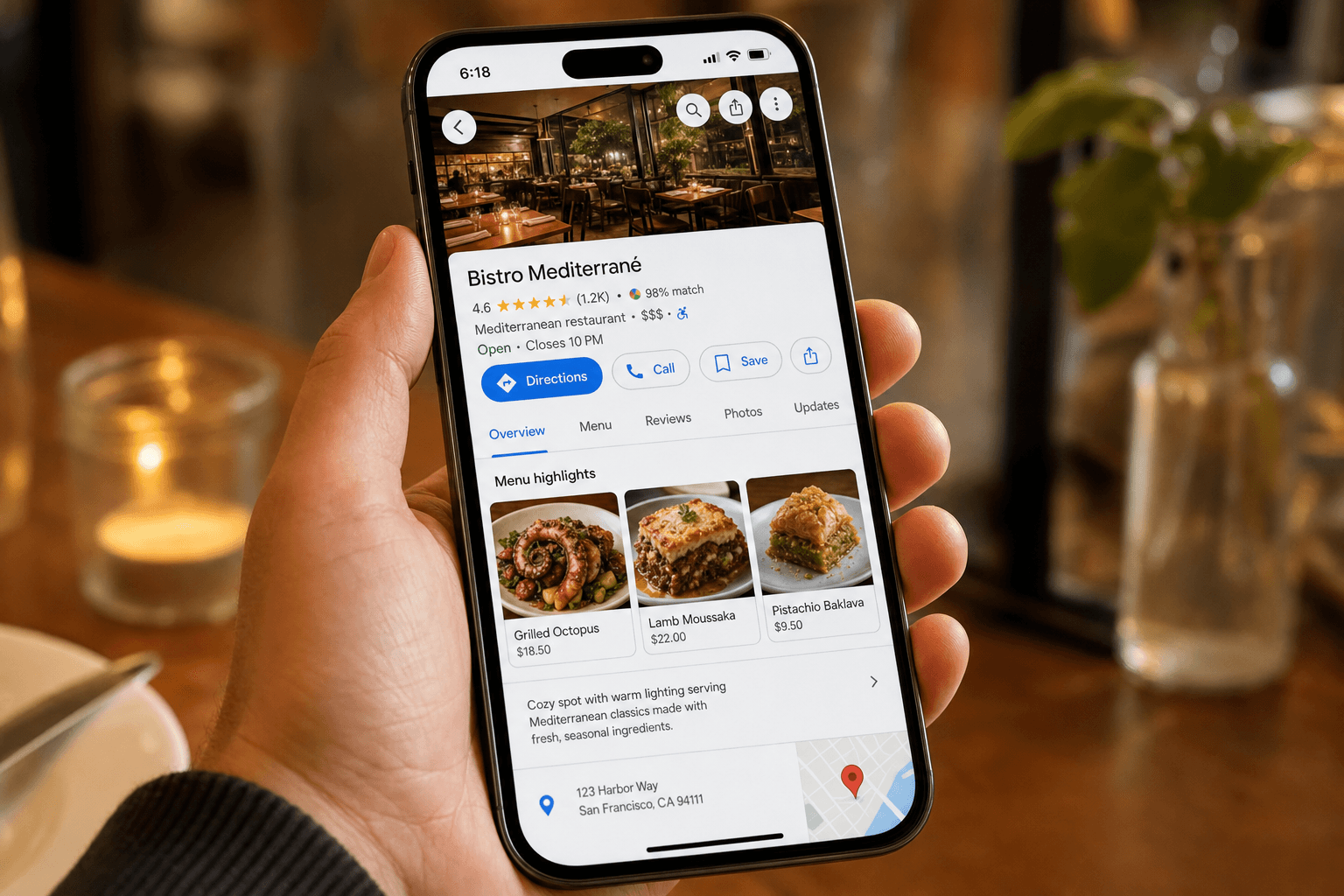
When someone searches for your restaurant on Google, your Business Profile is often the first thing they see — before your website, before your social media, before anything else. That profile shows your hours, photos, reviews, and, if you've set it up correctly, your menu. Most restaurant owners never take full advantage of this. They leave the menu field blank, or they link to a clunky PDF that doesn't load well on mobile.
Adding a clean, mobile-friendly QR code menu link to your Google Business Profile takes less than ten minutes and pays off every day. Customers browsing on Google Maps can see your dishes before they decide to visit. They arrive already knowing what they want. Fewer questions for your staff, faster table turns, and more confident ordering.
This guide walks you through the entire process: creating a hosted menu link, adding it to your Google Business Profile, and making sure it actually works the way customers expect.
Why Your Google Business Profile Needs a Menu Link
Google Business Profile (formerly Google My Business) is the panel that appears on the right side of a desktop search result or at the top of a Google Maps result for your restaurant. It pulls in your name, address, phone number, hours, photos, and reviews. It also has a dedicated field for your menu URL.
Here's why that field matters:
- Decision-making happens on Google. Studies consistently show that most diners decide where to eat before leaving the house. If your menu is visible on your Google listing, you win that decision more often.
- Google surfaces menu items directly. For some restaurants, Google will extract individual dishes from your menu URL and display them as "Popular dishes" or a menu preview right on the listing. A properly structured digital menu makes this more likely.
- It reduces friction for mobile users. A customer on Google Maps can tap your menu link, browse, and decide — without ever needing to navigate to your website separately.
- It signals completeness to Google's algorithm. Fully completed Business Profiles tend to rank higher in local search results. Adding a menu URL is one of the easiest completeness signals to tick off.
The catch: your menu link needs to point to a real, mobile-optimized page — not a PDF, not a broken URL, not a Facebook post. That's where a hosted digital menu comes in.
Step 1: Create a Hosted Digital Menu With a Shareable URL
Before you can add anything to Google, you need a stable URL that points to your menu. There are a few ways to get one:
Option A: Use a digital menu platform
The fastest and most reliable option is to use a platform like MenuHoster to build a digital menu that lives at a permanent URL. You get a mobile-first menu page that loads quickly, looks professional, and can be updated any time without changing the URL. This is important: if you ever update your prices or add new items, the link you gave Google still works — it just shows the new content.
Option B: Convert your existing PDF menu
If you already have a PDF menu, you can use a PDF-to-QR-code menu tool to host it online. This is quicker to set up, though a purpose-built digital menu typically performs better on mobile and is more likely to have Google extract individual dish information from it.
Option C: A page on your own website
If your website already has a dedicated menu page that loads quickly on mobile and is easy to navigate, you can use that URL. Just make sure it's not a PDF embed, it loads in under three seconds on a phone, and the content is structured clearly. If your website menu is slow or hard to read on mobile, a hosted menu page is the better choice.
Whatever route you choose, test the URL on your phone before you do anything else. Tap through it the way a customer would. If it's slow, hard to read, or requires zooming, fix that first.
Step 2: Log In to Your Google Business Profile
You manage your Google Business Profile through your Google account. There are two ways to access it:
- Search for your business on Google while logged into the Google account that owns the listing. A management panel will appear directly in the search results with buttons like "Edit profile," "Add update," and "Read reviews."
- Go to business.google.com and sign in. This takes you to the full Business Profile Manager dashboard, which is useful if you manage multiple locations.
If you haven't claimed your Business Profile yet, go to business.google.com and click "Manage now." You'll need to verify ownership, typically by receiving a postcard at your business address, a phone call, or — for some businesses — instant verification via Google Search Console.
Step 3: Add Your Menu URL to the Profile
Once you're in your profile, here's exactly where to add the menu link:
Via the search result panel (quickest method)
- Search for your business name on Google while logged in.
- Click "Edit profile" in the management panel that appears.
- Scroll to the "Contact" section.
- Look for the "Menu link" or "Menu URL" field. (Note: this field is available for restaurants, cafes, and bars. It may not appear for all business categories.)
- Paste your menu URL into that field.
- Click "Save."
Via the Business Profile Manager dashboard
- Go to business.google.com and select your location.
- Click "Edit profile."
- Navigate to the "Contact" tab.
- Find the "Menu link" field and paste your URL.
- Save your changes.
Google may take 24–48 hours to reflect the update on your public listing, though it often appears within a few hours.
Step 4: Add Menu Items Directly in Google (Optional but Valuable)
In addition to the menu URL field, Google Business Profile has a separate "Menu" section where you can manually enter individual items with names, descriptions, prices, and photos. This is different from the menu URL — it's a structured data entry tool built into Google itself.
Why bother? Because items entered here can appear directly on your Google listing as a visual menu preview, and Google may show them as "Popular dishes" in search results. This is valuable real estate.
To access it:
- In your Business Profile editor, look for the "Menu" section (separate from the Contact/URL section).
- Add sections (e.g., Starters, Mains, Desserts, Drinks).
- Within each section, add items with a name, optional description, and optional price.
- You can also add a photo for each item — these photos can appear in Google Maps searches.
You don't need to enter every single item. Focus on your most popular dishes, your signature items, and anything with a great photo. Even 10–15 well-entered items can significantly improve how your listing looks and performs.
Keep in mind: these manually entered items and your external menu URL serve different purposes. The URL sends people to your full, browsable menu. The manually entered items give Google structured data to display directly in search results. Use both.
Step 5: Add Photos of Your Menu and Dishes
Google Business Profile allows you to upload photos to your listing. Listings with photos get significantly more clicks and direction requests than those without. For a restaurant, this means food photos.
Best practices for Business Profile photos:
- Upload at least 10 high-quality food photos. Natural light or well-lit studio shots work best.
- Include at least one photo of the interior so customers know what to expect.
- Add photos of your most popular and visually appealing dishes — the ones that make people say "I want that."
- Update photos seasonally when your menu changes.
- Encourage customers to add their own photos by making the experience photo-worthy and mentioning it in your follow-up communications.
Photos and a solid menu link work together. A customer sees a beautiful dish photo, taps to your menu, sees the price and description, and decides to visit. That's the full journey you want to enable.
Step 6: Keep Your Menu URL Stable and Your Content Current
One of the most common mistakes restaurants make is linking to a URL that breaks or changes. This happens when:
- The PDF is re-uploaded with a new filename, creating a new URL.
- The website is redesigned and the menu page moves to a different path.
- The menu is hosted on a social media post that gets deleted.
A broken menu link on your Google listing is worse than no link at all — it actively frustrates potential customers and signals neglect to Google's algorithm.
The solution is to use a hosted menu platform where the URL is permanent and the content is editable. When you update your prices or add a new dish, you change the content behind the same URL. Google's link stays valid. Customers always see the current menu. This is one of the core reasons a dedicated digital menu tool is worth using over a PDF or a static webpage.
If you ever do need to change your menu URL, update it in your Google Business Profile immediately and set up a redirect from the old URL if possible.
Step 7: Verify Everything Works From a Customer Perspective
After you've added your menu URL and any manual menu items, do a full customer-perspective check:
- Open Google Maps on your phone (not your browser, not while logged into your Google account).
- Search for your restaurant by name.
- Find your listing and tap it.
- Look for the menu link — tap it and make sure it loads correctly.
- Check that the menu is readable without zooming, that prices are visible, and that the page loads quickly.
Also ask a friend or family member to do the same search and give you honest feedback. What they find confusing or slow, your customers will too.
Tying It Into Your Broader QR Menu Strategy
Your Google Business Profile menu link is one piece of a broader digital menu strategy. The same URL you add to Google can also be:
- Encoded into a contactless QR code menu for your tables, counter, and windows.
- Added to your Instagram and Facebook bios.
- Linked from your website's navigation.
- Included in your email newsletter footer.
- Printed on takeout bags and receipts.
Because it's the same URL everywhere, any update you make to the menu is instantly reflected across all of these touchpoints. One edit, everywhere current. That's the real efficiency of a hosted digital menu.
Frequently Asked Questions
Does every Google Business Profile have a menu URL field?
No. The menu URL field is available for food and drink businesses — restaurants, cafes, bars, bakeries, and similar categories. If you don't see the field, check that your business category is set correctly. You can update your primary category in the "Business information" section of your profile editor.
Can I link directly to a PDF menu instead of a webpage?
Technically yes, but it's a poor experience for mobile users. PDFs are slow to load, require zooming and scrolling, and Google cannot extract structured data from them to display as menu previews. A mobile-optimized menu page will always outperform a PDF link on a Google listing.
How long does it take for my menu link to show up on my Google listing?
Usually within a few hours, but Google states it can take up to 3 business days for edits to appear publicly. If your listing hasn't updated after 3 days, log back in and confirm the URL was saved correctly.
Will adding a menu URL help my restaurant rank higher on Google Maps?
It can contribute. Google favors complete, accurate Business Profiles in local rankings. Adding a menu URL, keeping your hours current, responding to reviews, and uploading photos all signal to Google that your listing is actively managed and trustworthy. No single action is a silver bullet, but completeness consistently correlates with better local visibility.
What if my menu changes frequently — do I need to update Google every time?
Not if you're using a hosted digital menu platform with a stable URL. The URL you gave Google stays the same; only the content behind it changes. You only need to update Google if your menu URL itself changes. For manually entered menu items within Google's own menu editor, you'd want to update those periodically, but a full refresh once per season is usually sufficient.
Ready to get your menu in front of every customer who searches for you on Google? Create your free digital menu on MenuHoster in minutes, get a permanent shareable URL, and add it to your Google Business Profile today. It's one of the highest-return, lowest-effort improvements you can make to your restaurant's online presence.
MenuHoster Team
Helping restaurants go digital