How to Update Your QR Menu Without Reprinting the Code
Updated:
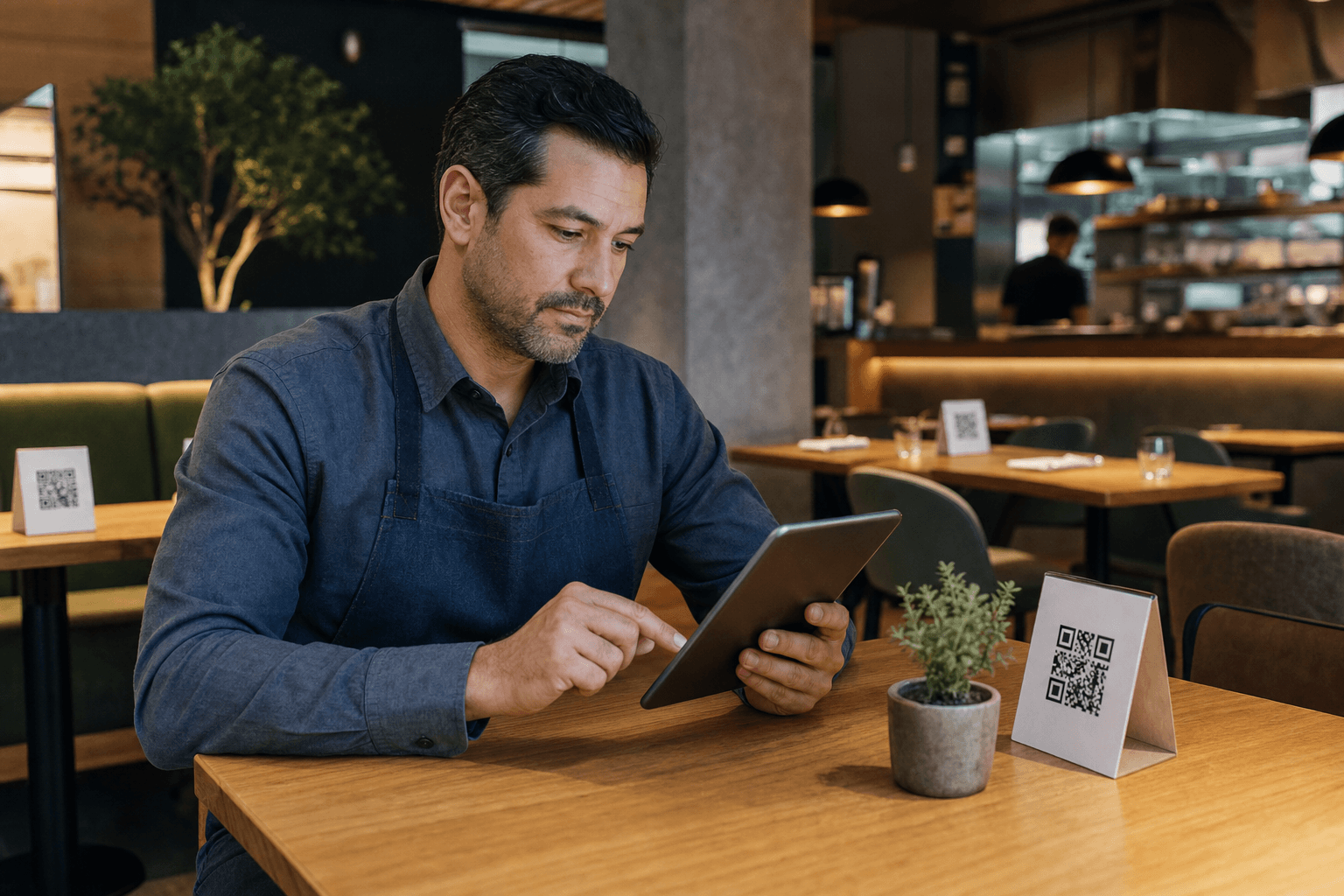
One of the biggest selling points of a QR code menu is that it can change instantly—no reprint, no laminator, no crossed-out prices with a Sharpie. But a lot of restaurant and cafe owners don't fully understand how that works, and some have even printed static QR codes that break the moment they touch the underlying menu. This guide walks you through the mechanics, the right setup, and the practical workflow for keeping your QR menu current without ever ordering new codes.
Why the QR Code Itself Doesn't Need to Change
A QR code is just a machine-readable link. It encodes a URL—nothing more. When a customer scans it, their phone opens that URL in a browser. The menu they see is whatever lives at that URL right now.
This means:
- The QR code printed on your table tent points to a fixed web address.
- You update the content at that web address.
- The next scan instantly shows the new content.
- The printed code never changes because the URL never changes.
The key phrase here is dynamic QR code. A dynamic code points to a short redirect URL that you control. A static code bakes the destination directly into the pattern—change the destination and the code is broken. If you're not sure which type you have, check out how contactless menus work for a plain-English breakdown.
Static vs. Dynamic: The One Distinction That Matters
Before you do anything else, confirm that your QR codes are dynamic. This is the single most important technical decision in the whole setup.
Static QR codes
Static codes encode the full destination URL directly into the QR pattern. If your menu URL ever changes—or if you generated a code pointing to a PDF file that you later replaced—the code is dead. Customers scan it and get a 404 or an outdated file. There is no fix except reprinting.
Dynamic QR codes
Dynamic codes encode a short redirect URL (something like menu.menuhoster.com/abc123). That redirect points to your actual menu page. You can update your menu content, change your menu URL structure, or even migrate to a new platform—as long as you keep the redirect working, the printed code keeps working. This is the only type worth printing on physical materials.
Platforms like MenuHoster generate dynamic codes automatically when you create a QR code menu, so you don't have to think about this. But if you generated a code from a generic free tool years ago, double-check before you rely on it.
The Three Things You Can Update Without Reprinting
Once you have dynamic codes in place, here's what you can safely change at any time:
1. Menu content (prices, items, descriptions)
This is the most common update. Ingredient costs go up, you add a seasonal special, you 86 a dish that isn't moving. Log in to your menu platform, make the edit, hit save. Anyone who scans the code from that moment forward sees the updated version. No lag, no reprint.
2. Menu structure (categories, sections, order)
Want to move your cocktails above your wine list? Add a happy hour section that only appears on weekday afternoons? Reorganize your brunch menu? All of this is content-level editing. The QR code doesn't care about structure—it just points to the page.
3. Availability and sold-out flags
Good digital menu platforms let you mark items as unavailable without deleting them. A customer scans the code, sees "sold out" next to the 86'd special, and orders something else. No awkward conversation with the server, no crossed-out item on a paper menu. When the item is back, you un-flag it in 10 seconds.
Step-by-Step: How to Update Your Menu Content
The exact steps depend on your platform, but the workflow is the same everywhere:
- Log in to your menu dashboard. Most platforms have a web-based editor. You don't need to be on-site—you can update from home, from your phone, from anywhere.
- Navigate to the item or section you want to change. Use search or browse by category.
- Make your edit. Change the price, rewrite the description, toggle availability, upload a new photo.
- Save. Changes are usually live within seconds. Some platforms have a "publish" step; others auto-save.
- Verify. Scan your own QR code with your phone to confirm the change looks right before service starts.
That's it. For a single price change, this takes under two minutes. For a full seasonal menu overhaul, budget 30–60 minutes depending on how many items you're swapping out.
Common Scenarios and How to Handle Them
Price increases
Update every affected item before the new prices go into effect. If you're raising prices across the board, most platforms let you do bulk edits. Don't leave old prices live—customers will order at the old price and you'll have an awkward moment at checkout.
Seasonal menu changes
The cleanest approach is to keep your core menu intact and add or remove a "Seasonal Specials" section as needed. This way your permanent items are never disrupted. If you run a full seasonal rotation, consider duplicating your menu, editing the duplicate for the new season, and swapping which version is live—so you always have a fallback.
Daily specials and 86'd items
Build a habit: at the start of each service, spend two minutes marking sold-out items and adding any specials. At the end of service, unmark them for the next day. This is much faster than it sounds once it's part of your opening routine.
Happy hour and time-limited menus
Some platforms support scheduled visibility—a section that automatically appears and disappears at set times. If yours doesn't, the manual toggle approach works fine for most operators. Set a phone reminder for 4:55 PM and another for 7:05 PM.
Allergen and dietary label updates
These are especially important to keep current. If a recipe changes and a dish now contains a new allergen, update the label immediately. Customers with serious allergies rely on this information. For a deeper look at how to handle this well, see our guide on building a complete digital menu with dietary information.
What About PDF Menus on QR Codes?
A lot of operators—especially those who switched to QR codes quickly during the pandemic—linked their QR codes directly to a PDF file. This creates a few problems:
- PDFs are hard to read on mobile. Customers have to pinch and zoom, and the experience is frustrating.
- Updating a PDF menu means uploading a new file. If your QR code points directly to the old file URL, you either have to keep the same filename (overwriting the old file) or reprint the code.
- You lose analytics. A PDF can't tell you how many people opened it, what they looked at, or when they scanned.
If you're currently using a PDF-based setup, the right move is to migrate to a proper web-based digital menu. You can use a PDF-to-QR-code menu converter to get your existing menu content into a dynamic, mobile-friendly format without starting from scratch. Once you've migrated, your existing QR codes can be redirected to the new page—no reprint needed.
Keeping Your Printed Materials Future-Proof
Even if you never need to reprint for a menu update, you might someday reprint table tents for wear and tear, a rebrand, or a new location. Here's how to make sure you never get locked in:
Always use a platform-hosted URL, not a direct file link
Your QR code should point to a URL your platform controls (e.g., yourvenue.menuhoster.com or your custom domain). Never point it directly to a file path like dropbox.com/yourfile.pdf.
Use a custom domain if possible
A custom domain (like menu.yourrestaurant.com) means you can switch platforms without reprinting codes. You just update the DNS to point to the new platform. This is a slightly advanced step but worth it for established venues.
Test your codes periodically
Once a month, scan your own codes. Make sure they load fast, look right, and show current information. This takes 60 seconds and catches problems before customers do.
Store your QR code source files
Keep the high-resolution QR code image files somewhere accessible (cloud storage, email to yourself). When you eventually reprint table tents, you don't want to hunt for the original file.
How Often Should You Actually Update?
There's no universal answer, but here are sensible benchmarks for different types of operations:
- Fast-casual or cafe: Review prices quarterly. Update specials and availability daily or as needed.
- Full-service restaurant: Seasonal menu changes 2–4 times per year. Daily 86 updates as standard practice.
- Bar: Cocktail menu seasonally. Bottle list and draft list as your inventory changes—which may be weekly.
- Food truck or pop-up: Potentially every service, since your menu may vary by location and day.
The beauty of a dynamic QR menu is that there's no cost to updating frequently. Update as often as your operation demands.
Frequently Asked Questions
If I update my menu, do customers who already have the QR code scanned need to do anything?
No. The QR code just opens a URL in a browser. When a customer scans it again (or refreshes the page), they see the latest version automatically. There's nothing to install, download, or update on their end.
What happens if I switch menu platforms? Do I need to reprint my QR codes?
It depends on your setup. If your QR code points to a short redirect URL controlled by your platform, you may need to update that redirect to point to your new platform's URL. If you're using a custom domain, you can update your DNS and keep the same printed codes. Either way, check with your new platform before reprinting anything—there's often a way to avoid it.
Can I have multiple menus (lunch, dinner, bar) all on one QR code?
Yes, most modern digital menu platforms support multiple menus or sections under one account, accessible from a single URL. Customers land on a page that shows all available menus or tabs. You manage each one independently and can activate or deactivate them as needed.
Is there a risk of the QR code "expiring"?
Static QR codes don't expire, but they also can't be updated. Dynamic QR codes managed by a paid platform are active as long as your subscription is active. If you cancel your subscription, the redirect may stop working. This is a good reason to use a reputable platform and to keep your account in good standing—or to use a custom domain as a safety net.
How do I know if my current QR codes are static or dynamic?
The easiest way: scan the code and look at the URL that opens. If it's a short, generic redirect URL (like a link shortener or a platform-specific short URL), it's almost certainly dynamic. If it goes directly to a long URL with your full menu path or a PDF filename, it's likely static. You can also check with whoever generated the code originally.
Ready to stop worrying about reprints every time your menu changes? Create a free QR code menu on MenuHoster and get a dynamic, mobile-friendly menu you can update in minutes—from anywhere, at any time. Your printed codes stay put; your menu stays current.
MenuHoster Team
Helping restaurants go digital