QR Code Menu Design Mistakes That Kill Scan Rates (and How to Fix Them)
Updated:
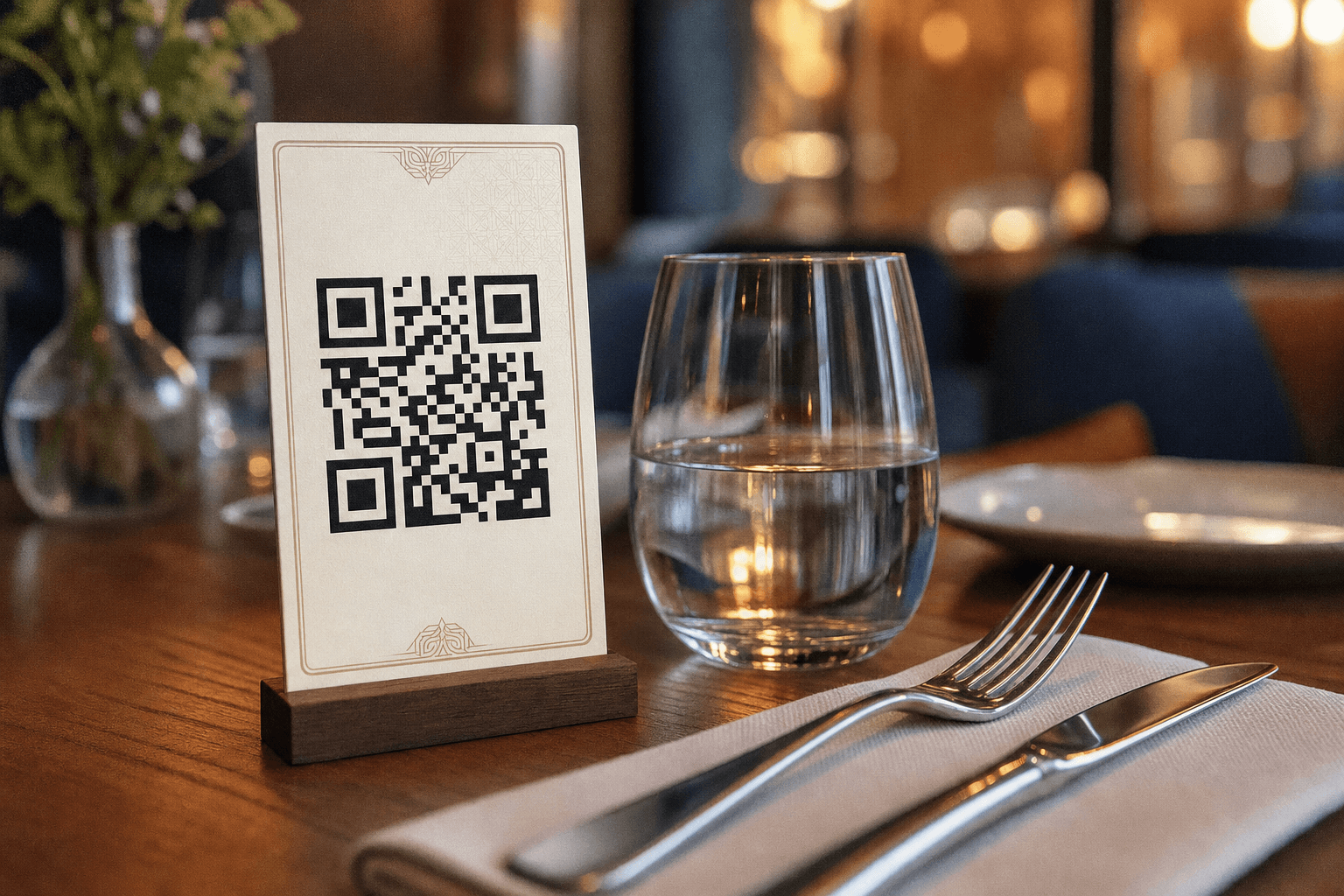
You printed the QR codes, laminated them, put them on every table—and still half your guests are flagging down a server to ask for a paper menu. Sound familiar? The problem usually isn't that customers dislike QR menus. It's that the QR code itself, or the experience it leads to, is broken in one or more subtle ways that kill the motivation to scan.
This guide breaks down the most common QR code menu design mistakes restaurant, cafe, and bar owners make—and gives you concrete fixes for each one. Work through this list and you'll see a measurable lift in scan rates without spending a cent on new hardware.
Mistake 1: The QR Code Is Too Small
This is the single most widespread problem. Owners shrink the QR code to fit a logo or a decorative table card, and end up with a code that's 2–3 cm square. At typical table distances—30 to 50 cm away—most phone cameras struggle to lock on to anything smaller than about 4 cm square, especially in dim lighting.
The fix
- Minimum print size: 4 cm × 4 cm. For table-top tent cards, aim for 6–7 cm so guests don't have to hover their phone uncomfortably close.
- Leave a clear white "quiet zone" border of at least 4 modules (the tiny squares that make up the code) on all four sides. Printing edge-to-edge destroys scannability.
- If you're using a logo in the center of the code, keep it to no more than 30% of the total area, and always test-scan before printing in bulk.
Mistake 2: Low Contrast Between Code and Background
Beige code on a cream background. Dark-brown code on a kraft-paper card. These look on-brand but they're nearly unscannable. QR readers rely on high contrast to distinguish the dark modules from the light background. Reduce that contrast and you reduce scan reliability—especially on older phone cameras.
The fix
- Stick to the classic: black code on a white background. It works every time.
- If you must brand the code, you can use a dark brand color for the modules (navy, forest green, deep burgundy) on a white or very light background. Never invert—light modules on a dark background confuse most scanners.
- Avoid placing the code over a photograph or patterned surface, even with a semi-transparent overlay.
Mistake 3: No Call to Action Around the Code
A naked QR code with no explanation is a mystery object to a significant portion of your guests—particularly older diners or first-time visitors. Without a prompt, many people won't even try to scan it. Others will scan it but feel uncertain about what they're getting into.
The fix
- Add a short, direct instruction: "Scan to view our menu" or "Point your camera here for the full menu."
- Include a small camera icon or phone icon above or below the code to reinforce the action.
- If your venue attracts international guests, consider a second line in a relevant language. A multilingual prompt costs nothing and removes a real barrier—see our guide on setting up a contactless menu for more on serving diverse guests.
Mistake 4: Bad Placement on the Table
A QR code lying flat on a table is harder to scan than one propped upright. Flat codes require guests to hold their phone directly overhead, which is awkward and often results in glare from overhead lighting washing out the code. Many guests simply give up.
The fix
- Use a tent card or a small acrylic stand so the code faces the guest at roughly a 60–90 degree angle. This mimics the natural angle at which people hold their phones.
- Place one code per table, not one per seat. A single well-positioned card is less cluttered and easier to spot than four flat stickers.
- Position the card where guests naturally look first—center of the table or next to the condiment holder, not tucked behind a flower vase.
- For bars and counters, consider a vertical sign at eye level near the ordering point rather than a flat sticker on the bar top.
Mistake 5: The Code Links to a PDF
Generating a QR code that opens a PDF menu is a quick-and-dirty solution that creates a terrible guest experience. PDFs are not designed for mobile screens. Guests have to pinch-zoom to read anything, columns don't reflow, and the file can take 10–20 seconds to download on a slow connection. Abandonment rates for PDF menus are significantly higher than for mobile-optimized pages.
The fix
- Link to a mobile-responsive digital menu page instead. The page should load in under two seconds, display categories clearly, and require no zooming to read item names and prices.
- If you currently have a PDF menu and want a fast upgrade path, MenuHoster's PDF-to-QR code menu converter turns your existing PDF into a properly formatted digital menu without rebuilding everything from scratch.
- Test your menu link on at least two different phones (Android and iPhone) and on both Wi-Fi and cellular before going live.
Mistake 6: The Landing Page Loads Too Slowly
Even if your QR code scans perfectly, you'll lose guests if the menu page takes more than three seconds to load. Research consistently shows that mobile users abandon pages that don't load within 2–3 seconds. A slow-loading menu feels broken, and guests assume the QR code "didn't work."
The fix
- Use a hosted menu platform rather than self-hosting on a slow shared server. Platforms built for this use case handle CDN delivery and image optimization automatically.
- Compress food photos before uploading. A 4 MB photo from your phone camera should be reduced to under 200 KB for web use. Tools like Squoosh (free, browser-based) make this a 30-second task.
- Avoid embedding large video backgrounds or autoplay animations on your menu page. They look impressive in demos and kill performance in practice.
- Check your page speed score using Google PageSpeed Insights. Aim for a mobile score above 80.
Mistake 7: Using a Static QR Code
A static QR code bakes the destination URL directly into the code's pattern. That means if you ever need to change the menu URL—because you switched platforms, updated your domain, or restructured your site—you have to reprint every single code in your venue. Many owners end up with outdated codes pointing to dead pages, and guests get a 404 error when they scan.
The fix
- Always use a dynamic QR code that points to a short redirect URL you control. If the destination changes, you update the redirect—not the printed code.
- Most reputable menu platforms, including MenuHoster's QR code menu generator, create dynamic codes by default and handle the redirect infrastructure for you.
- Keep a record of where every code is deployed (tables, windows, social media, Google Business Profile) so you can audit them periodically.
Mistake 8: The Menu Page Isn't Actually Your Menu
This sounds obvious, but it happens more than you'd think. The QR code links to a homepage that requires guests to navigate to a menu section. Or it links to a menu that was last updated six months ago and still shows items you no longer serve. Both scenarios erode trust and create friction at exactly the wrong moment—when a guest is hungry and ready to order.
The fix
- The QR code should link directly to the menu page, not to a homepage, a social media profile, or a contact page.
- Set a recurring calendar reminder to audit your digital menu at least once a month. Remove discontinued items, update prices, and add seasonal specials. A well-maintained digital menu builds confidence with repeat guests.
- If you run different menus for different dayparts (breakfast, lunch, dinner), either use separate QR codes for each or use a platform that supports time-based menu switching.
Mistake 9: Ignoring Lighting Conditions
A QR code that scans fine under bright office lighting may be completely unusable in a candlelit wine bar. Dim environments make it hard for phone cameras to focus, and glossy laminate finishes create glare that washes out the code pattern.
The fix
- Test your QR codes in your actual venue lighting—not at your desk—before finalizing the design and materials.
- Use a matte finish on printed QR code cards rather than gloss. Matte surfaces eliminate the glare problem entirely.
- For very dark venues, consider adding a small LED spotlight or a backlit acrylic sign holder that illuminates the code from behind. This is a one-time investment that pays off every night.
- Avoid placing codes near candles or tea lights where flickering light and heat can make scanning inconsistent.
Mistake 10: Not Testing Across Devices
The owner who set up the QR menu tested it on their own iPhone 14 Pro. It looked great. But a guest with a three-year-old Android budget phone gets a broken layout, and another guest with an older iPhone gets a download prompt instead of a menu page. These edge cases are common and completely avoidable.
The fix
- Test your menu on at least one iOS device and one Android device before launch—and on both Wi-Fi and mobile data.
- Ask a staff member with a different phone model to run through the full scan-to-menu experience and report any issues.
- Check that the menu renders correctly in both portrait and landscape orientations.
- Verify that the page works without requiring guests to download an app or create an account. Any friction at this stage is a scan you'll never get back.
Mistake 11: One QR Code for a Multi-Venue or Multi-Menu Setup
If you run a restaurant with a separate drinks menu, a happy hour menu, and a dessert menu—all linked from a single generic QR code—you're making guests do navigation work they shouldn't have to do. Similarly, if you have multiple locations sharing one code, guests may land on the wrong location's menu.
The fix
- Create purpose-specific QR codes: one for food, one for drinks, one for the happy hour menu. Label each clearly on the printed card.
- For multi-location businesses, generate a unique code per location so analytics and menu content stay clean and location-specific.
- If you want a single code that covers everything, make sure the landing page has clear, large-tap navigation buttons to each section—not a wall of text guests have to scroll through.
Putting It All Together
Most of these mistakes compound each other. A small, low-contrast code on a flat table surface, linking to a slow-loading PDF, in a dimly lit room—that's a scan rate of nearly zero, and it's not because your guests don't want to use their phones. Fix even two or three of these issues and you'll see an immediate difference.
The most impactful single change most venues can make is switching from a static PDF link to a fast, mobile-optimized digital menu with a dynamic QR code. Everything else—placement, size, contrast, lighting—is refinement on top of that foundation. Once you have the fundamentals right, you can start using QR code analytics to track scan rates over time and identify which tables or placements are underperforming.
Frequently Asked Questions
What is the minimum size a QR code should be for restaurant use?
For reliable scanning at typical table distances (30–50 cm), your QR code should be at least 4 cm × 4 cm when printed. For table tent cards that guests view from further away, 6–7 cm is a safer target. Always include a clear white border (quiet zone) around the code and test-scan the final printed version before distributing it.
Why do guests say the QR code "doesn't work" even though it scans?
Usually, the code scans fine but the destination page loads too slowly or doesn't display correctly on their device. Guests interpret a blank screen or a spinning loader as a broken code. Check your page load speed, make sure the menu is mobile-responsive, and confirm the link is live and up to date. Switching from a PDF link to a proper mobile menu page resolves this in most cases.
Should I use a static or dynamic QR code for my restaurant menu?
Always use a dynamic QR code. Dynamic codes point to a redirect URL you can update without reprinting the physical code. If you ever change your menu platform, update your domain, or restructure your site, you simply update the redirect—your printed codes keep working. Static codes are a false economy: one URL change means reprinting everything.
How do I improve scan rates in a dark or candlelit restaurant?
Use a matte finish on your QR code cards to eliminate glare, and test the code in your actual venue lighting before finalizing the design. For very dark environments, consider a backlit acrylic holder or a small directional light aimed at the code. Also make sure the code has maximum contrast—black modules on a white background—since low-contrast designs fail first in dim conditions.
How often should I check that my QR code menu is working correctly?
Do a full scan test at least once a month, and always immediately after making any changes to your menu platform, domain, or URL structure. It also helps to ask new staff members to run through the scan-to-menu flow as part of their onboarding—fresh eyes catch broken experiences that regulars have learned to work around.
Ready to fix your QR menu experience from the ground up? MenuHoster's QR code menu generator creates dynamic, mobile-optimized menus that load fast, look great on any device, and give you the analytics to keep improving. See our plans and get your first menu live today—no design experience required.
MenuHoster Team
Helping restaurants go digital