Canva menu QR code guide
Make a Canva menu QR code by exporting your design as a PDF and publishing it at a public address. Download the menu’s code, then put it back into Canva for your tables, window or takeaway bags.
Use the file above, or paste a link / type your business name below.
Free plan: 1 live menu, PDF and photo import, QR code, 1,000 views per 30 days, 25 orders a month at 0% commission. No card. Unlimited menu items on your live menu.
Pro adds branded links and scheduled prices. US monthly price $9.49 (For 12 months — then $19/mo).
Export in Canva, publish, and place the code
Export the right menu pages
In your Canva design, choose Share and Download, select PDF Standard for on-screen use, and select the menu pages. Keep the original design available for print changes and export another copy whenever the artwork changes.
Publish the menu at one address
Upload the PDF above. Keep the original layout if the design is the menu, or convert and review items if staff will edit prices often. Publish and download the QR image from the published menu.
Place the QR image in Canva
Open the design for your table card or sign. In Uploads, choose Upload files and select the QR image, then place it with a clear margin. Print one proof and scan it before producing the full batch.
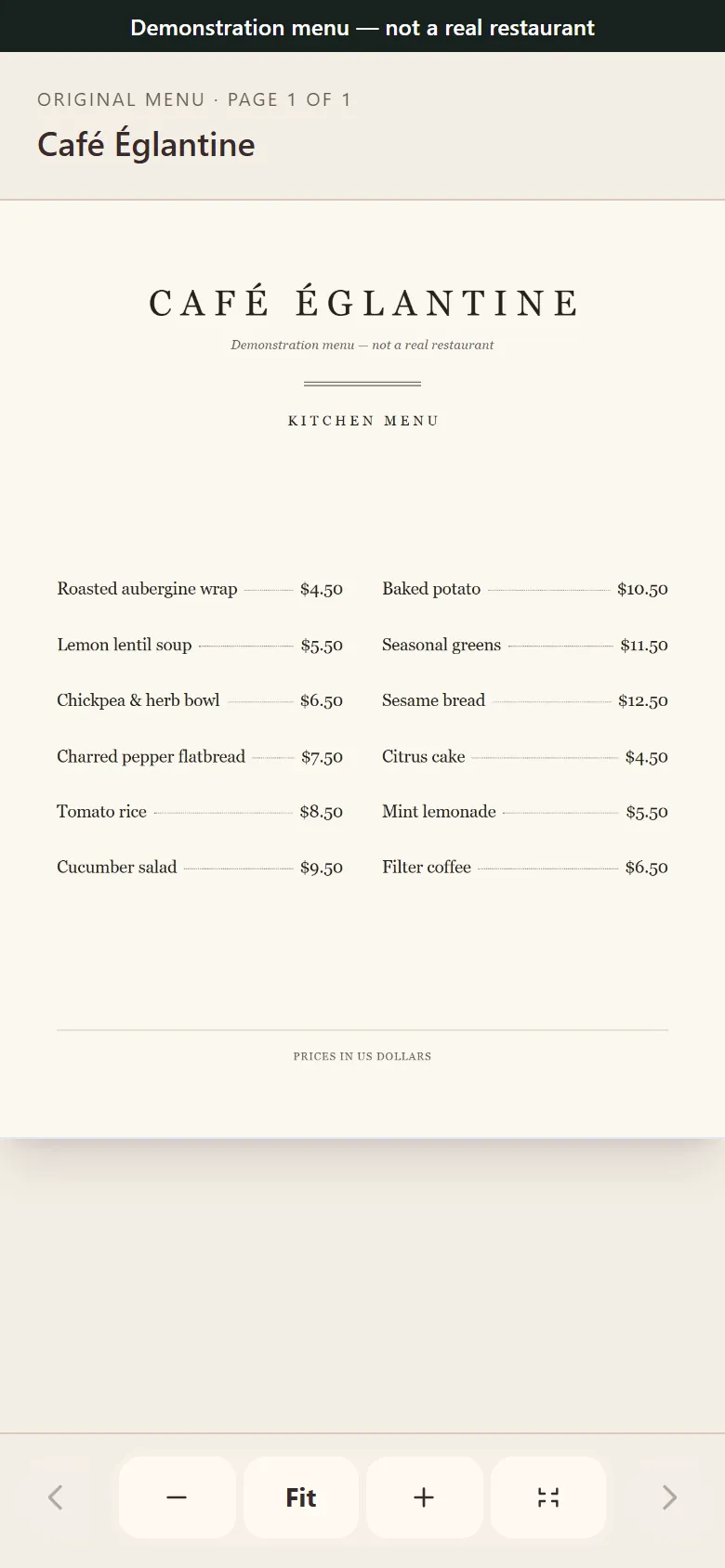
Original layout
Editable menu
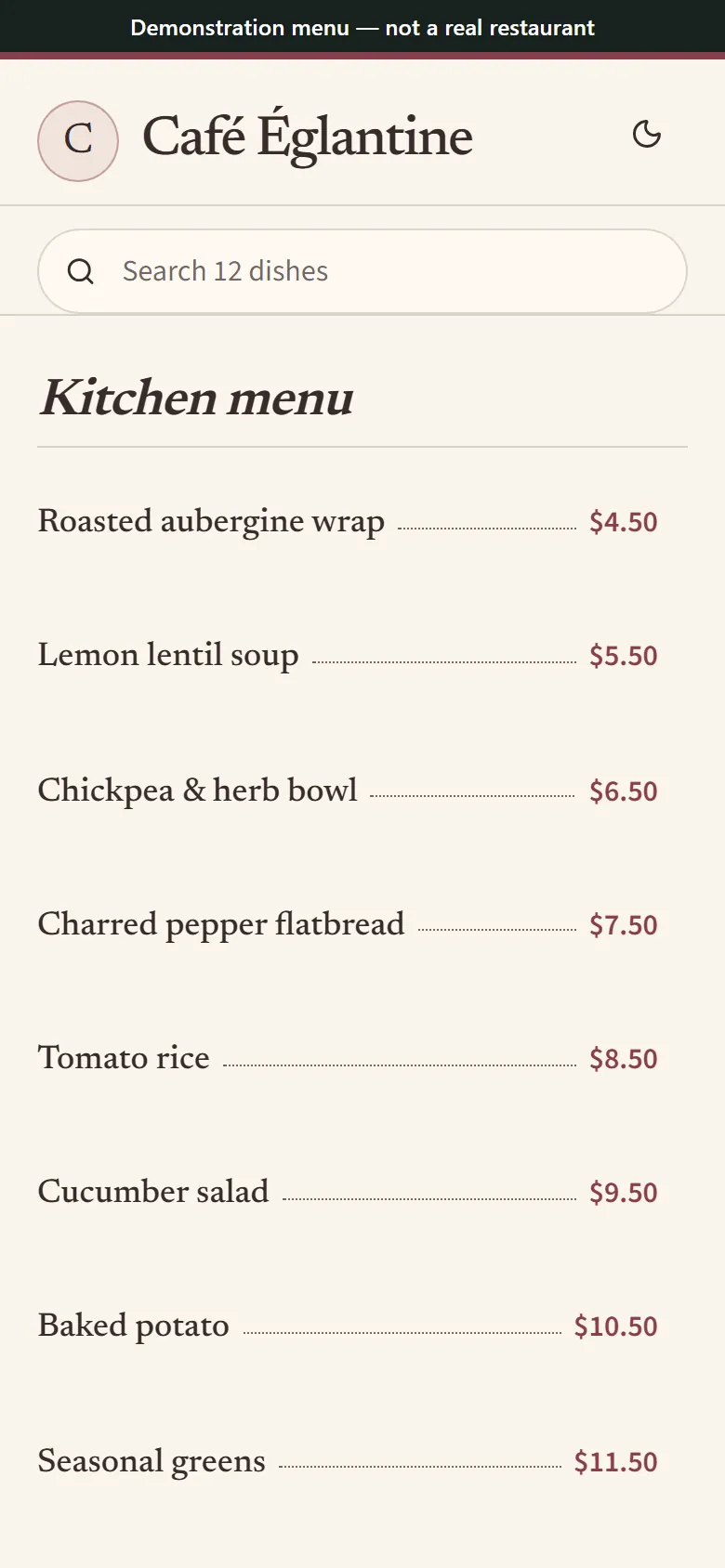
Sample menu artwork beside the same café menu rendered as editable dishes. Synthetic menu for illustration.
Choose which file will change over time
You can use Canva for the printed sign and MenuHoster for the menu it opens. The menu PDF can preserve the design you gave to your printer. An editable menu lets a manager change a single price while keeping the sign design and menu address in place.
Keep a small, plain description such as “Scan for the current menu” near the code. Leave blank space around it and avoid printing over a busy background. Test the proof on the kind of table, window or packaging it will actually sit on.
Work from the public address
If you prefer Canva’s built-in QR element, give it the published menu address. Store that address with the design so the next person can confirm the code’s destination before editing. When artwork changes, recheck the destination and scan the next proof.
Common questions
Can I make a QR code for a menu I designed in Canva?
Yes. Publish the exported menu first. Use the QR code from the published menu or put that same public address into Canva’s QR code tool.
Where can I find the QR code in Canva?
In the editor, search Apps for QR Code when you are creating one from a link. To place a code you already downloaded, open Uploads and select the image from your device.
Can I print menus in Canva?
Yes. Export a separate print-ready file for your printer when needed. For signage with a code, scan a physical proof at its intended reading distance before ordering the rest.
Can I keep the printed code when the Canva design changes?
Keep the menu published under the same address and replace its artwork or edit the dishes there. Scan the old code after the update to verify the destination still opens.
Which QR image should I send to a print shop?
Ask the shop what file format and dimensions it wants. Keep the image sharp, maintain blank space around the code and test a proof under the lighting where customers will scan it.