Convert a PDF menu to a digital menu
Convert a PDF menu to a digital menu by uploading the file and turning its dishes into editable entries. Check the draft against the PDF before publishing a menu guests can read without pinching to zoom.
Use the file above, or paste a link / type your business name below.
Free plan: 1 live menu, PDF and photo import, QR code, 1,000 views per 30 days, 25 orders a month at 0% commission. No card. Unlimited menu items on your live menu.
Pro adds branded links and scheduled prices. US monthly price $9.49 (For 12 months — then $19/mo).
From a PDF layout to editable menu items
Choose the cleanest PDF
Start with the file you export from your design app. If several menus are combined in one document, export the pages you serve as a separate PDF and put them in the intended order before uploading.
Match every price to its dish
Read each section from top to bottom in the editor. Use the source to settle unclear lines, then enter missed prices, restore split descriptions, and correct names or modifiers where the draft needs them.
Read the published menu like a guest
Open the preview on a narrow screen, check the section headings and confirm that size and add-on pricing make sense. Publish and replace your old PDF link with the new guest-facing address.
Original layout
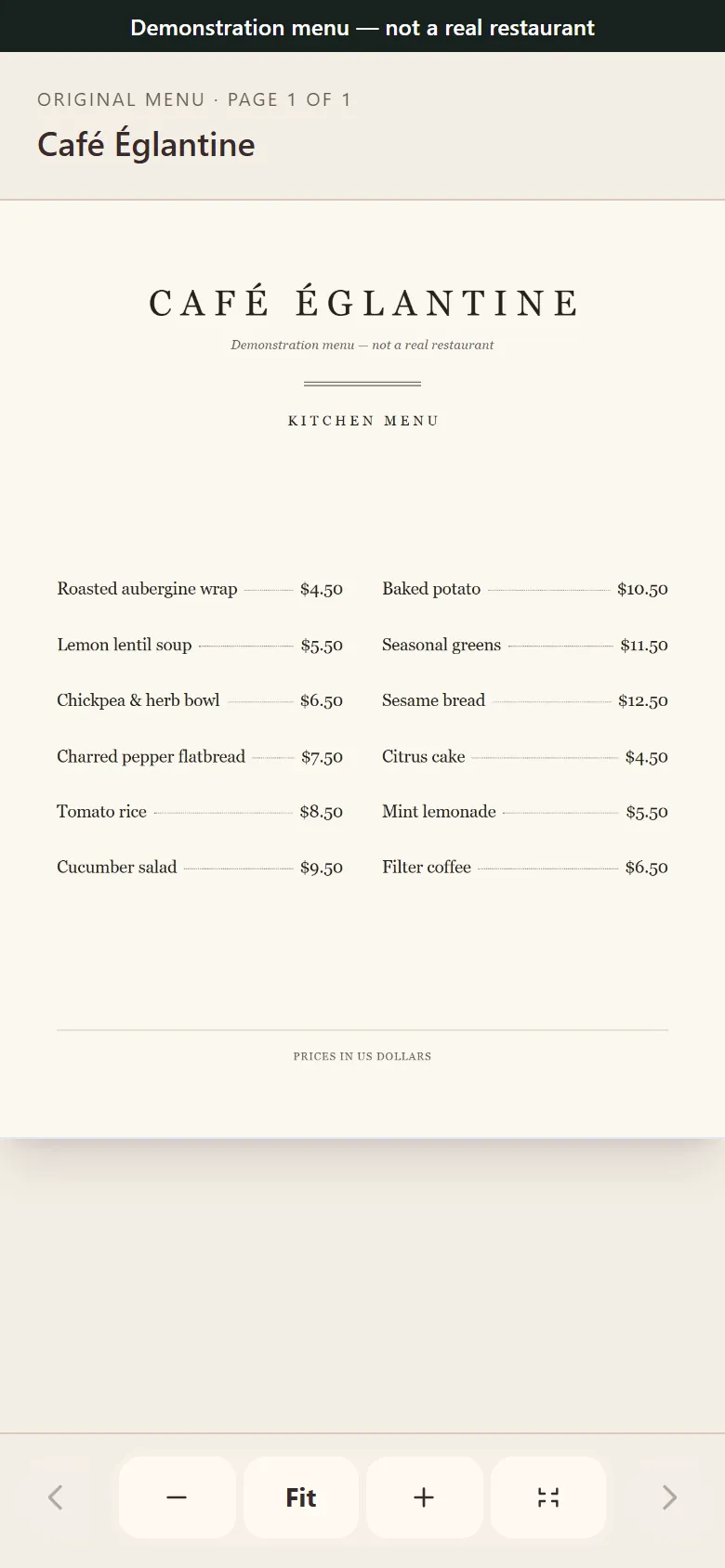
Editable menu
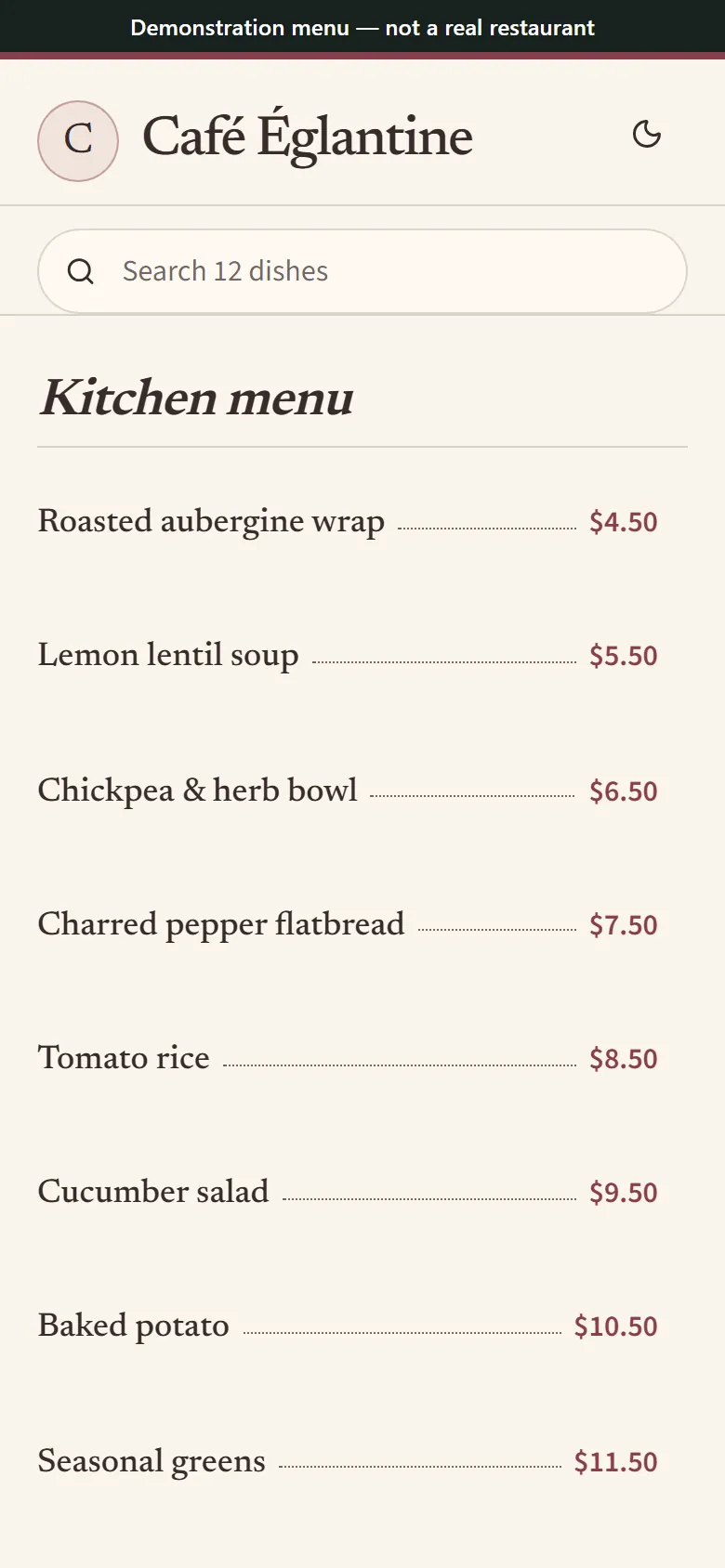
The same sample café dishes in original artwork and editable menu format. Synthetic menu for illustration.
Where a PDF import needs review
Clear, printed dish names, prices and headings give the import the best material to work from. In a multi-column layout, check where the reader moved from one column to the next. A heading in the center can accidentally become a dish or be attached to the wrong section.
Handwritten prices and numbers inside photos can come through incomplete. Compare the source next to the draft and enter every uncertain value yourself. A price such as “market” or a surcharge printed as a footnote deserves its own check.
Make the new menu easy to maintain
Agree where your team will make future updates. Give recurring items a consistent name, group sizes under the correct dish and leave a note for staff about where seasonal dishes belong. Open the live link after every change that affects prices or availability.
Use the paper menu and your point-of-sale price list to reconcile the draft when they disagree. Review multi-size dishes, fixed-price sets and extras in a second pass. Add prices and descriptions as text in the menu so a guest can read them at their preferred font size.
Common questions
How do I convert a PDF to a digital file guests can read?
Upload it and choose the editable import. The draft separates sections and dishes so you can verify them and offer a readable menu on a phone.
How do I make a digital menu from a scanned PDF?
Use the clearest scan you have. Check low-contrast print, cropped margins and prices before sharing. For a badly damaged scan, enter unclear items from your own records.
How can I create a digital menu for free?
Import and review the PDF and publish within the Free allowance. Open the public menu on your phone and copy its address only once you are satisfied.
Can my PDF stay as an exact visual reference?
Keep the PDF as a separate reference or pick the original-layout publishing mode when uploading. Editing a price as an individual field requires editable menu items.
How should I handle a PDF with a separate drinks sheet?
Give drinks a clear heading and keep their sizes, pours and prices together. If you decide to publish the drinks sheet independently, write down its separate link so your team can update the correct destination.